You can run AI-assisted chat, summarization, and semantic note search inside Obsidian without sending prompts to a hosted model. The practical setup uses Ollama as the local model server and Local LLM Helper as the Obsidian interface.
This is a private-by-default setup, not an absolute privacy guarantee. Your text stays on the machine when the plugin points only to localhost and you avoid optional features that contact outside services. A remote model URL, web-search provider, or external embed changes that boundary.
What This Setup Does
Ollama runs the model and exposes an API on your computer. Its official API documentation lists http://localhost:11434/api as the default native API base. Local LLM Helper connects through Ollama's OpenAI-compatible endpoints and adds Obsidian commands for chat, text actions, semantic retrieval, and cited answers.
The two-model design matters:
gemma3:4bnomic-embed-textYou don't need embeddings for simple selected-text commands. You do need them for RAG chat, semantic search, and Related Notes.
Check Your Hardware Before Downloading Models
Local AI is constrained by memory more than vault size. The model must fit in available system memory or GPU memory along with Ollama, Obsidian, and your operating system. Longer context also consumes more memory; Ollama's context-length guide explicitly warns that increasing context raises memory use.
Ollama does not publish a universal RAM-to-model table because runtime needs change with quantization, context, and hardware offloading. Use the official download size as a lower-bound planning signal, start small, then inspect actual memory pressure and ollama ps before moving up:
gemma3:1bgemma3:4bqwen3:8bThose file sizes come from the official Gemma 3 model library and Qwen 3 model library. They are not promises about runtime RAM, speed, or answer quality. This guide has not benchmarked those models on a controlled hardware set, so it does not claim response-time or minimum-memory results. CPU response time depends heavily on the processor, quantization, context, and prompt. A supported GPU can improve throughput; use ollama ps after a request to see whether a loaded model is on CPU, GPU, or split between them.
Step 1: Install and Verify Ollama
Download the installer for macOS, Windows, or Linux from Ollama's official download page. On Linux, the documented install command is:
curl -fsSL https://ollama.com/install.sh | sh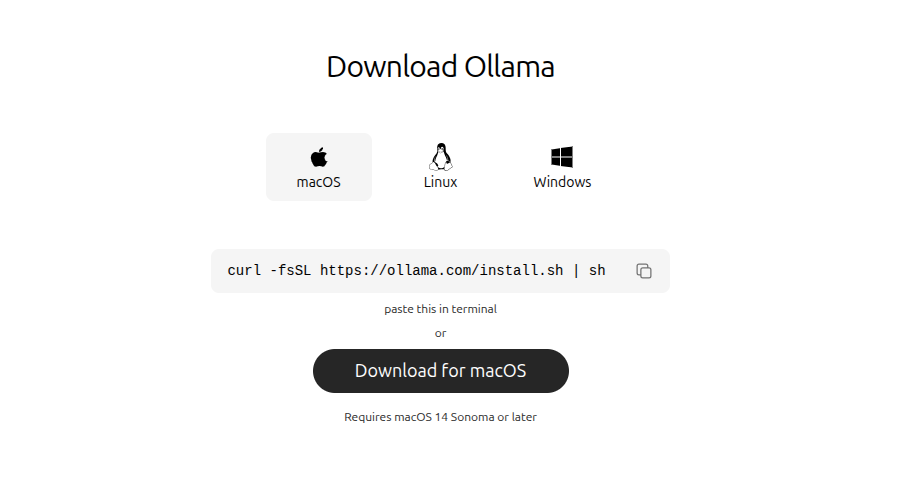
On a Linux systemd installation, check the service with:
systemctl status ollamaOn any platform, the clearest functional test is the API itself:
curl http://localhost:11434/api/tagsIf that returns JSON, the server is reachable. If it produces a connection error, launch the Ollama application or run ollama serve in a terminal and retry.
Step 2: Pull a Chat Model and an Embedding Model
The current Local LLM Helper quick start uses Gemma 3 for chat and Nomic Embed Text for retrieval. Pull both:
ollama pull gemma3:4b
ollama pull nomic-embed-text
ollama list
If memory is tight, substitute gemma3:1b. The exact name shown by ollama list is the name you must enter in the plugin. Don't enter a marketing family name such as “Gemma” when the installed tag is gemma3:4b.
Before involving Obsidian, test chat directly:
ollama run gemma3:4bAsk it for a one-sentence response, then exit. This isolates Ollama problems from plugin problems.
Step 3: Install Local LLM Helper in Obsidian
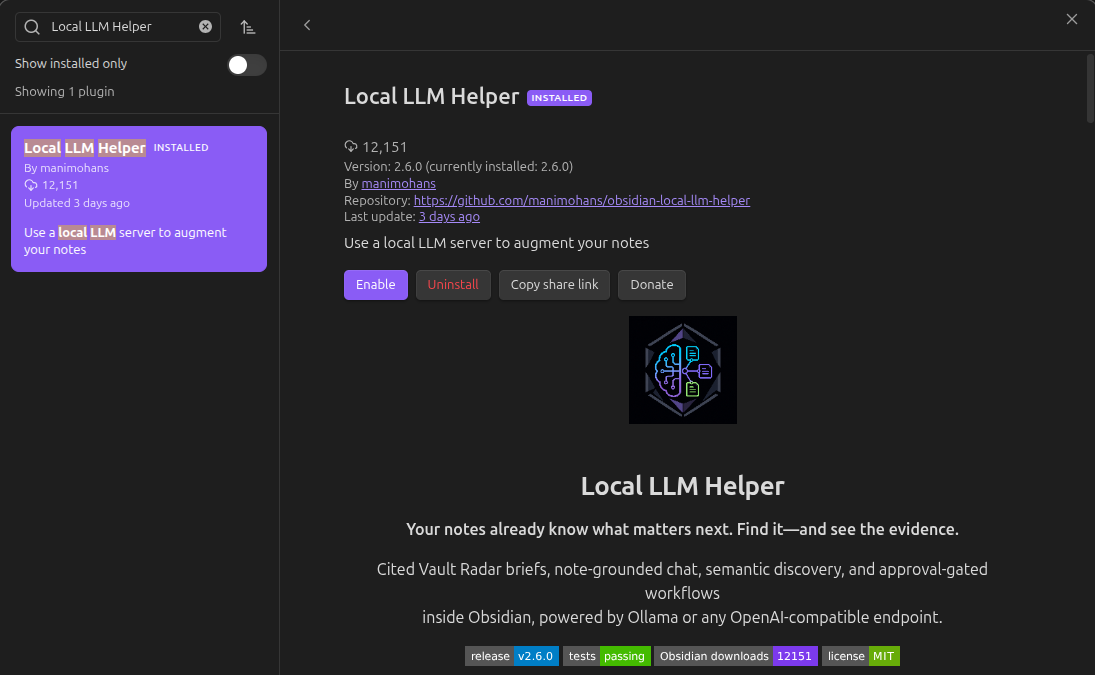
Open Settings → Community plugins, turn on community plugins if required, select Browse, and search for Local LLM Helper. Install and enable the entry published from the manimohans/obsidian-local-llm-helper repository.
Community plugins execute third-party code in Obsidian. Review the repository, recent releases, and requested behavior before enabling any plugin. If the plugin isn't available in the browser, its repository documents a manual release installation path; our local plugin installation guide explains where those release files belong.
Step 4: Connect the Plugin to Ollama
Open Settings → Local LLM Helper and enter:
Ollamahttp://localhost:11434gemma3:4b or the exact installed tagnomic-embed-text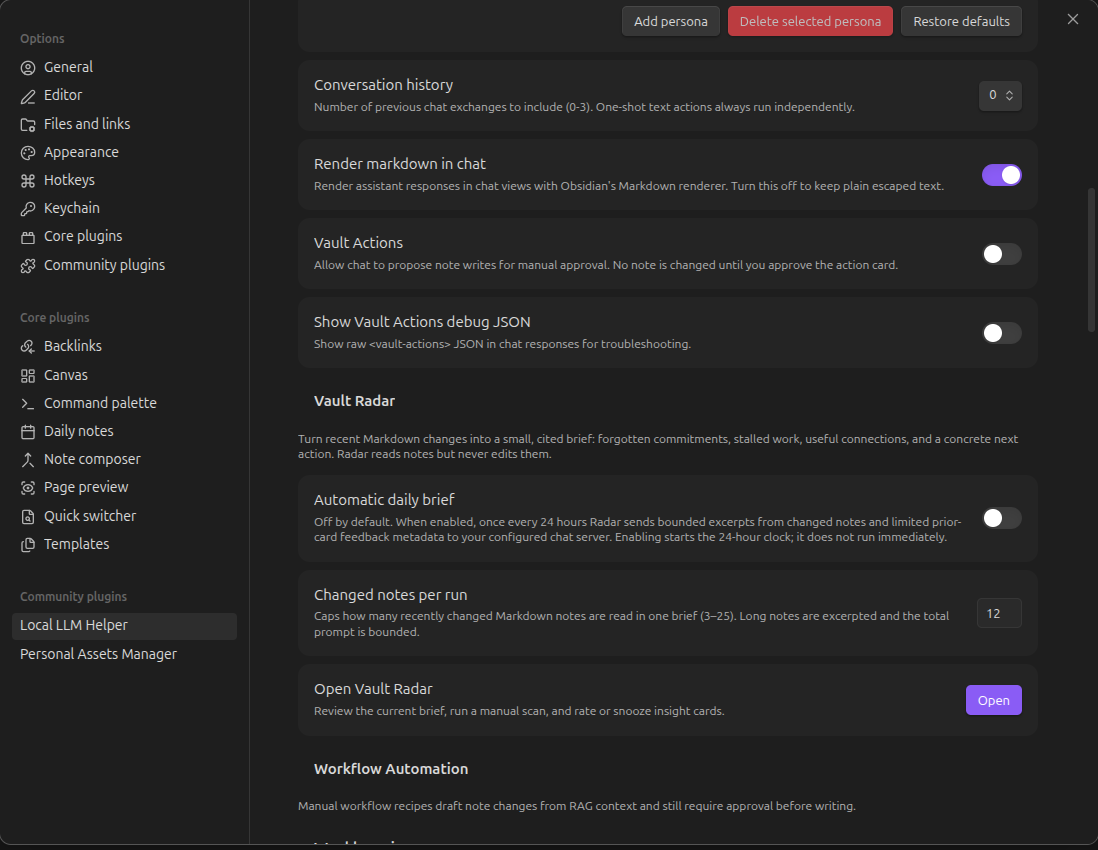
Use the plugin's model browser if it can discover your local models. Otherwise, paste the exact tags from ollama list. The plugin's current README says chat completion, embeddings, and model discovery use /v1/chat/completions, /v1/embeddings, and /v1/models; Ollama documents these routes in its OpenAI compatibility reference.
Don't increase context or output limits pre-emptively. Start with defaults, confirm a short request works, and raise limits only when a real note exceeds them.
Step 5: Index Notes for Retrieval
Saving the connection settings is enough for direct chat and text actions, but it doesn't make the vault searchable. Open the Command palette with Ctrl+P or Cmd+P, then run Notes: Index notes for RAG.
Indexing converts note text into embeddings and stores a retrieval index. Run it after the initial setup and again when the plugin indicates that the index is stale. For the first test, use a small folder with a few non-sensitive notes rather than indexing the whole vault immediately.
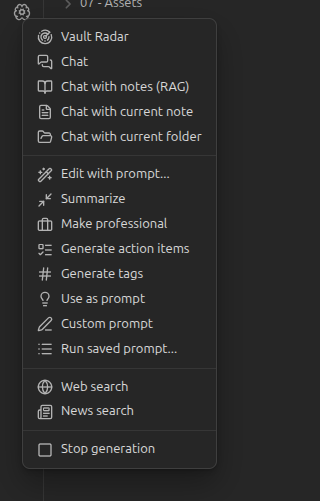
After indexing, try a question whose answer exists in one note:
Using only my indexed notes, list the decisions in the project kickoff note.
Cite the note title for every decision. Say when the notes do not contain an answer.
Open the cited note and compare it with the response. This checks retrieval quality, not just whether the model can produce plausible prose.
A Practical Obsidian Workflow
A safe first workflow is a weekly project digest:
- Put three project notes in a test folder: goals, meeting notes, and an open-task list.
- Index those notes for RAG.
- Ask for decisions, unresolved questions, and overdue tasks, with a source note for each item.
- Review every citation against the original note.
- Copy the approved digest into a new Markdown note yourself.
This keeps the first run read-oriented and auditable. Once the answers are consistently grounded, you can allow narrower write tasks. For broader local-AI options, compare the workflow with our AI plugin guide. If cloud models suit your needs better, see the separate Obsidian API-key setup.
Troubleshooting
Obsidian Reports a Connection Error
Run curl http://localhost:11434/api/tags. If it fails, start Ollama. If it succeeds, verify that the plugin URL is exactly http://localhost:11434, without an unrelated path or port. Ollama's FAQ says the server binds to 127.0.0.1:11434 by default.
The Plugin Says the Model Does Not Exist
Run ollama list, then copy the complete tag into the relevant model field. Chat and embedding models are different; installing gemma3:4b doesn't also install nomic-embed-text.
Chat Works but Vault Questions Do Not
Confirm that you installed an embedding model and ran Notes: Index notes for RAG. Direct chat proves only that the chat endpoint works. Retrieval also depends on the embedding endpoint and an up-to-date index.
Responses Stop Early or Ignore Older Context
Shorten the request and retrieve fewer notes before increasing context. Larger context needs more memory. Check the active allocation with ollama ps, then adjust context only if the model and machine have headroom.
The Model Is Too Slow
Try gemma3:1b, close memory-heavy applications, and keep the retrieved note set narrow. A smaller grounded model can be more useful than a larger model starved of memory. Avoid claiming a universal tokens-per-second target because hardware and model builds vary.
Privacy and Security Boundaries
The plugin repository states that Local LLM Helper has no telemetry or hosted backend of its own, and sends data only to endpoints tied to the features you invoke. With both endpoints set to localhost, model requests remain on the local server.
Three caveats still matter:
- Optional web search sends queries to its configured search provider.
- A remote server URL sends prompts or excerpts to that server.
- Notes can contain external embeds that Obsidian loads independently of the model request.
Also avoid exposing Ollama to your local network or the public internet merely to make another device connect. The default loopback binding is the safer boundary. If remote access is necessary, treat authentication, transport encryption, and firewall rules as a separate infrastructure task.
Limitations and When Not to Use It
Local models can hallucinate, miss relevant notes, or produce weak summaries. Retrieval reduces unsupported answers but doesn't eliminate them. Keep backups and review changes before allowing batch edits.
This setup is a poor fit when your computer cannot comfortably hold even a small model, when you need strong multimodal or frontier-model reasoning, or when several devices must share one always-available assistant. A hosted API may be simpler in those cases, but it creates different privacy and cost decisions.
Frequently Asked Questions
Does Ollama upload my Obsidian vault?
Ollama doesn't scan the vault by itself. Local LLM Helper sends selected text or retrieved note excerpts to the configured endpoint. With localhost-only endpoints, those model requests stay on the same machine; optional remote features can send data elsewhere.
Do I need a GPU?
No GPU is required to complete the setup, but CPU generation may be slower. Start with a small model and use ollama ps to inspect how Ollama loaded it.
Why do I need an embedding model?
Embeddings let the plugin find notes related to a question. They are required for semantic retrieval features, not for a simple prompt sent directly to the chat model.
Can I use a different chat model?
Yes. Pull it with Ollama and enter its exact tag in the plugin. Choose based on available memory, language needs, and the quality of answers on your own notes.
Will the assistant update its knowledge when notes change?
The language model itself does not learn from your vault. The retrieval index must reflect the current notes, so re-index when needed. The model receives relevant excerpts at request time.