TUTORIAL: Obsidian LOCAL PLUGINS
Obsidian has an incredible community plugin ecosystem with over 2,700+ plugins available directly from the built-in browser. But what happens when you find a plugin on GitHub that hasn't been published yet? Or you're developing your own plugin and need to test it locally? Or you want to install a beta version before it's officially released?
That's where local plugin installation comes in. It's simpler than you think, and this guide will walk you through every single step with screenshots.
Why Install a Plugin Locally?
Before we dive into the steps, here are the most common reasons you'd want to install a plugin manually:
Testing a plugin you're developing: If you're building your own Obsidian plugin, you need to load it directly from your vault's plugin folder to test it.
Installing unreleased or beta plugins: Some developers share early versions of their plugins on GitHub before they're available in the community store.
Using plugins that were removed from the store: Occasionally, plugins get removed from the community list but are still available on GitHub and work perfectly fine.
Forking and modifying existing plugins: If you want to tweak a plugin's behavior for your specific workflow, you can clone it, modify the code, and load your custom version locally.
What You Need
Before starting, make sure you have:
An Obsidian vault: Any vault will do, new or existing.
The plugin files: You need at minimum two files: main.js (the compiled plugin code) and manifest.json (the plugin metadata). Some plugins also include a styles.css file for custom styling.
File explorer access: You'll need to be able to browse your vault's folder on your computer's file system.
Step 1: Locate Your Vault's Plugin Folder
Every Obsidian vault has a hidden folder called .obsidian at its root. Inside it, there's a plugins folder where all your community plugins live.
On macOS open Finder, navigate to your vault folder, and press Cmd + Shift + . to show hidden files. Then open .obsidian → plugins.
On Windows open File Explorer, navigate to your vault, click View → Show → Hidden items, then open .obsidian → plugins.
On Linux open your file manager or terminal, use ls -la in your vault directory, and navigate into .obsidian/plugins.
If the plugins folder doesn't exist yet, simply create it manually. This happens when you haven't installed any community plugins before.
Step 2: Create a Folder for Your Plugin
Inside the plugins folder, create a new folder with the name of your plugin. This name should match the id field in the plugin's manifest.json file.
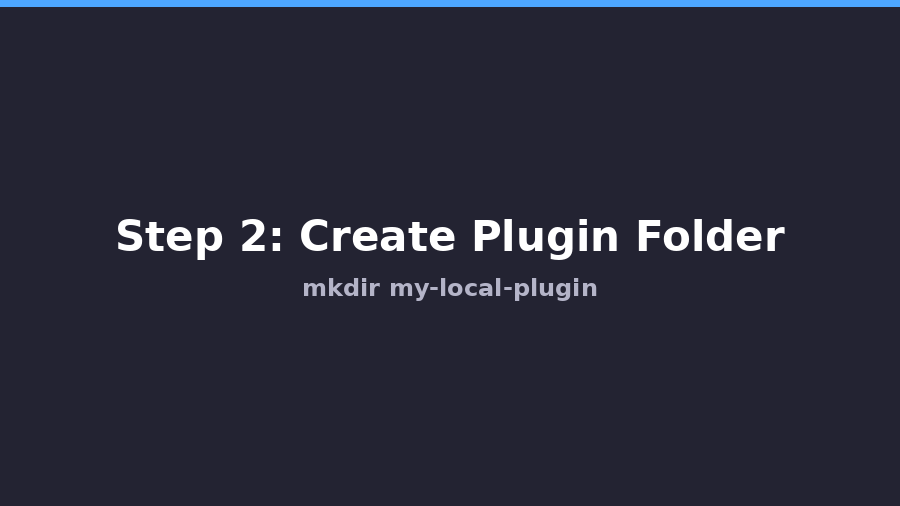
For example, if you're installing a plugin called "My Custom Plugin" with id my-custom-plugin, your folder structure should look like this:
Your Vault/
.obsidian/
plugins/
my-custom-plugin/
The folder name is important: Obsidian uses it to identify and load the plugin. Always use the exact id from the manifest.
Step 3: Add the Required Plugin Files
Copy the plugin files into the folder you just created. At minimum, you need:
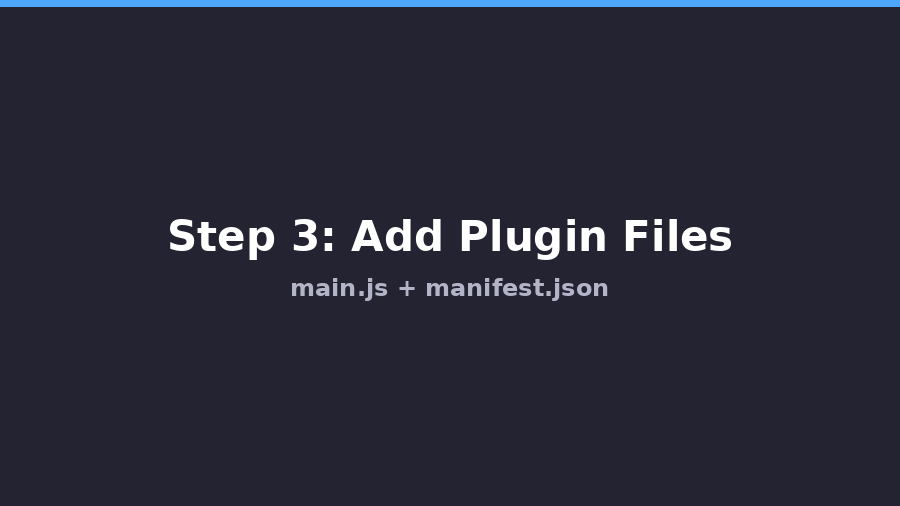
manifest.json: Contains the plugin's name, version, description, and minimum Obsidian version. This is what tells Obsidian "hey, this is a plugin."
main.js: The actual compiled JavaScript code that runs the plugin. This is the brain of the plugin.
styles.css (optional): Custom CSS styles that the plugin needs. Not all plugins have this file.
Your folder should now look like this:
Your Vault/
.obsidian/
plugins/
my-custom-plugin/
manifest.json
main.js
styles.css (if provided)
Important If you downloaded the plugin from GitHub, make sure you're getting the compiled files from the Releases page, not the raw source code. The source code needs to be built first.
Step 4: Enable Community Plugins in Obsidian
If you haven't already, you need to turn on community plugins in Obsidian's settings. This is a one-time step.
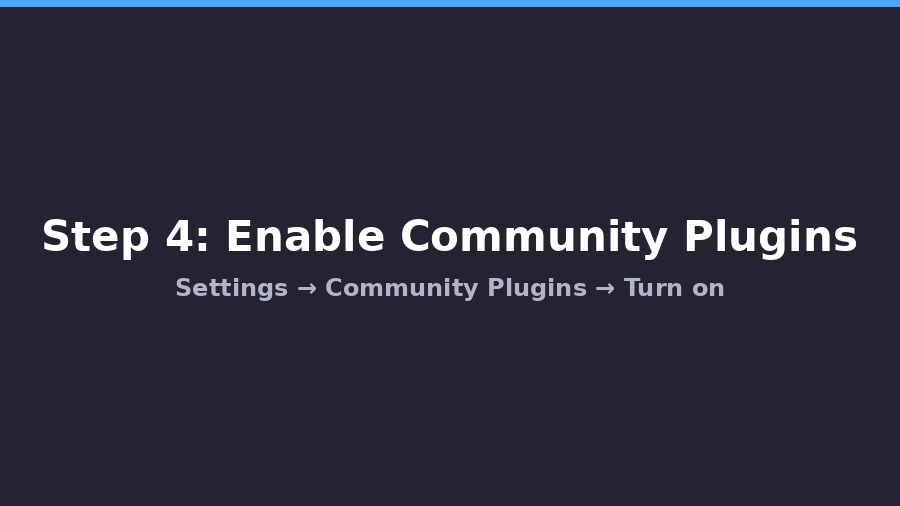
Open Obsidian Settings (gear icon or Cmd/Ctrl + ,), go to Community Plugins in the left sidebar, and click Turn on community plugins. You'll see a warning about third-party code: click Turn on to confirm.
This setting enables Obsidian to load any plugin from the .obsidian/plugins folder, including your locally installed ones.
Step 5: Enable Your Plugin
After adding the files and enabling community plugins, you need to tell Obsidian to actually load your plugin.
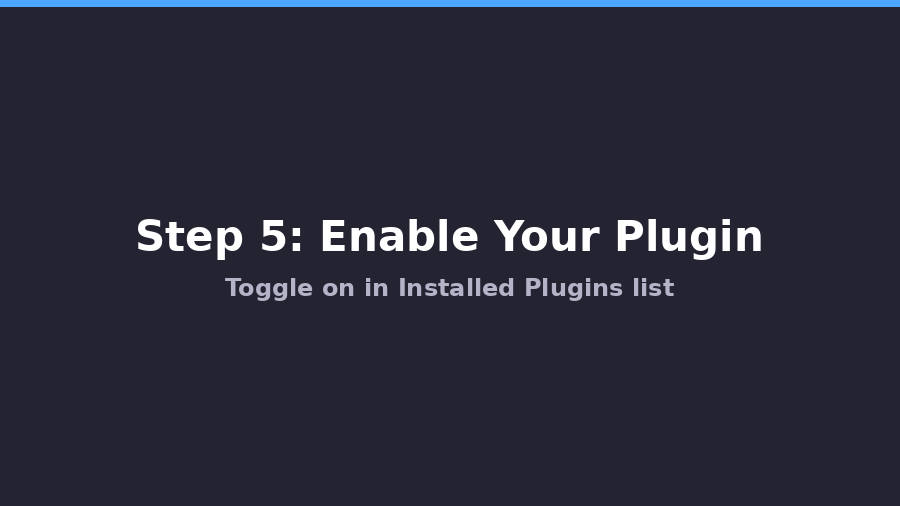
Go to Settings → Community Plugins and scroll down to the Installed plugins section. You should see your plugin listed there. If you don't see it, click the Reload plugins button (the circular arrow icon) to refresh the list.
Once you see your plugin, toggle it on using the switch next to its name. Obsidian will load the plugin immediately: no restart needed.
Step 6: Verify Everything Works
After enabling the plugin, verify it's running correctly:
Check the Command Palette: Press Cmd/Ctrl + P and search for commands added by your plugin. If they appear, the plugin is loaded and working.
Check Settings: Some plugins add their own settings tab. Go to Settings and look for your plugin name in the left sidebar.
Check for errors: Open the Developer Console with Cmd/Ctrl + Shift + I (or F12) and look for any red error messages related to your plugin.
If everything looks good, congratulations: your local plugin is installed and running!
Understanding the Plugin File Structure
Here's a closer look at what each file does and what a typical manifest.json looks like:
A minimal manifest.json contains these fields:
id: A unique identifier for the plugin (e.g., "my-custom-plugin"). This must match the folder name.
name: The display name shown in Obsidian's settings (e.g., "My Custom Plugin").
version: The current version number (e.g., "1.0.0").
minAppVersion: The minimum Obsidian version required (e.g., "1.0.0").
description: A short description of what the plugin does.
author: The plugin developer's name.
isDesktopOnly: Set to true if the plugin doesn't work on mobile, false if it does.
The Easy Way: Using BRAT
If manually copying files sounds tedious, there's a brilliant plugin called BRAT (Beta Reviewer's Auto-update Tester) that automates the entire process.
BRAT lets you install any plugin directly from a GitHub repository URL: even if it's not in the community store. It also handles auto-updates so you always have the latest version.
Here's how to use it:
Install BRAT from the community plugins browser (search for "BRAT").
Open BRAT settings and click Add Beta Plugin.
Paste the GitHub URL of the plugin repository (e.g., https://github.com/author/plugin-name).
Click Add Plugin: BRAT will download the latest release files and install them automatically.
BRAT is especially useful for:
Beta testing plugins before they're officially released.
Installing plugins from developers who haven't submitted to the community store yet.
Auto-updating local plugins that get frequent releases on GitHub.
Troubleshooting Common Issues
Plugin doesn't appear in the list: Make sure the folder name matches the id in manifest.json exactly. Click Reload plugins in settings. Check that manifest.json is valid JSON (no trailing commas, proper quotes).
Plugin appears but won't enable: Open the developer console (Cmd/Ctrl + Shift + I) and check for errors. The most common issue is a main.js file that was built for a different Obsidian API version.
Plugin works on desktop but not mobile: Check if isDesktopOnly is set to true in manifest.json. If the plugin should work on mobile, set it to false. Note that some plugins use Node.js APIs that genuinely don't work on mobile.
"Failed to load plugin" error: This usually means main.js is corrupted or incomplete. Re-download the files from the GitHub releases page. Make sure you downloaded the compiled release, not the source code.
Plugin conflicts: If enabling a plugin causes issues, try disabling other plugins one by one to find conflicts. Some plugins modify the same parts of the Obsidian UI and can interfere with each other.
Summary
Installing a local plugin in Obsidian is straightforward once you know the process:
Find your vault's plugin folder at .obsidian/plugins/
Create a new folder with the plugin's id
Add main.js and manifest.json (plus styles.css if needed)
Enable community plugins in Obsidian settings
Toggle on your plugin and verify it works
For a more automated approach, install BRAT and paste any GitHub repo URL to install plugins instantly.
Whether you're a plugin developer testing your own creation, a power user trying out beta features, or just someone who found a cool plugin on GitHub that isn't in the store yet: now you know exactly how to get it running in your vault.
Happy plugin hunting!