An effective Obsidian second brain with Claude Code is not a vault that “thinks for you.” It is a reviewable workflow: your Markdown files hold the durable record, CLAUDE.md defines operating rules, and Claude Code helps retrieve, transform, and connect material when you ask it to.
This guide assumes you can already open the vault in a terminal and complete one safe file task. New users should begin with the first-session Claude Code and Obsidian tutorial, which covers backups, permissions, paths, and change review.
Key Takeaways
- Separate durable notes from agent instructions and generated working files.
- Give Claude a narrow source set, explicit output path, and evidence rule for every workflow.
- Use daily and weekly reviews to decide what becomes durable knowledge.
- Claude doesn't learn your vault automatically; project instructions and notes provide context at request time.
What Makes This a Second-Brain Workflow
The system needs a loop, not just a chatbot. Capture brings information into the vault. Processing turns raw notes into tasks, decisions, or concepts. Review checks accuracy and relevance. Synthesis connects approved material without overwriting its sources.
Inbox/, daily notesProjects/, Areas/Resources/, concept notesReviews/weekly/CLAUDE.mdClaude Code can assist each layer, but your source notes remain authoritative. Generated summaries are navigation aids until you verify them.
Prerequisites and Boundaries
You need an Obsidian vault, a current Claude Code installation, and a recoverable backup. Anthropic's setup guide documents current operating-system and authentication requirements. Obsidian stores notes as local files, which is why a filesystem agent can work without a dedicated plugin.
Decide the boundary before building folders:
- Exclude
.obsidian/, attachments, exports, and private notes by default. - Never store API keys or passwords in
CLAUDE.md. - Require source-note links for extracted decisions, claims, and tasks.
- Ask before file deletion, renaming, or bulk replacement.
- Keep generated drafts in a dedicated folder until reviewed.
Step 1: Choose a Small Vault Structure
Start with folders that answer what the material is for:
Inbox/
Daily/
Projects/
Areas/
Resources/
Reviews/weekly/
Generated/
Templates/
CLAUDE.md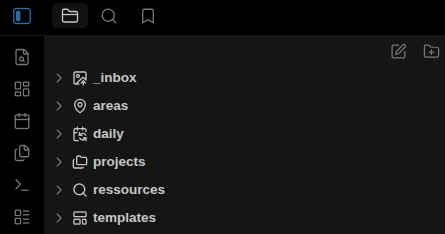
Inbox/ holds quick capture. Projects/ contains work with a defined outcome. Areas/ holds ongoing responsibilities. Resources/ keeps reference and concept notes. Generated/ quarantines agent-created drafts until review.
Don't reorganize an established vault merely to match this example. Map your existing folders to the same functions and document them in CLAUDE.md. Stable names matter more than adopting a fashionable taxonomy.
Step 2: Write Project Instructions in CLAUDE.md
Anthropic's Claude Code memory guide separates two mechanisms. CLAUDE.md contains persistent instructions written by you. Auto memory contains repository-scoped learnings and preferences that Claude records from work and corrections. Both are supplied as context in later sessions; neither mechanism trains the model on, or automatically indexes, the Obsidian vault.
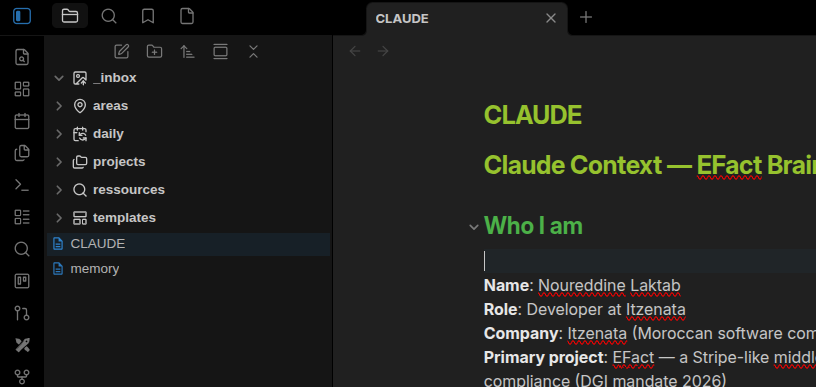
Use instructions that can be checked:
# Obsidian vault rules

## Source of truth
- Existing notes are authoritative. Generated summaries are drafts.
- Cite vault-relative source links after decisions, tasks, and factual claims.
- Say "not found in the selected notes" when evidence is absent.

## File boundaries
- Read Projects/, Areas/, Resources/, Daily/, and Reviews/ when requested.
- Write new drafts only to Generated/ unless a prompt names another path.
- Never edit .obsidian/, Attachments/, or Templates/ without explicit approval.
- Never delete, rename, or move files without showing the plan first.

## Formatting
- Preserve existing YAML property names and value types.
- Use [[vault-relative wikilinks]] for internal links.
- Use ISO dates: YYYY-MM-DD.
Run /context in Claude Code to confirm which instruction files are active. Use /memory to browse or edit memory locations. Review this file when folder names or property conventions change.
Step 3: Use Properties for Retrieval, Not Decoration
Consistent properties give both Obsidian and the agent reliable filters. Start with a small schema:
---
type: project
status: active
area: writing
reviewed: 2026-09-03
---
Use a property only when it supports a real filter, query, or review. The Obsidian Properties guide explains value types, templates, Bases, and Dataview in depth.
A generated note should identify its status:
---
type: generated-summary
status: needs-review
sources:
  - "[[Projects/Website refresh]]"
created: 2026-09-03
---
That marker prevents an unreviewed synthesis from looking like established knowledge.
Step 4: Build a Daily Planning Loop
The daily workflow should retrieve a defined set of notes, not scan the whole vault without a reason.
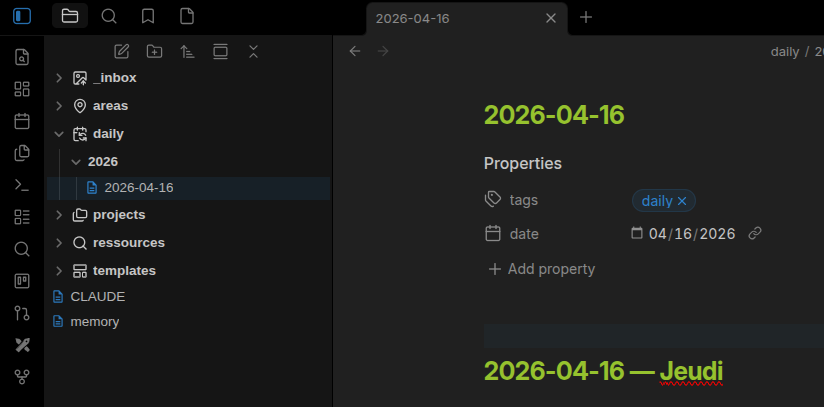
Use a prompt like:
Read yesterday's daily note and project notes where status is active.
Draft Generated/daily-plan-2026-09-03.md with:
1. incomplete tasks copied verbatim with source links,
2. explicit deadlines in the source notes,
3. at most three suggested priorities labeled "suggested."
Do not edit the source notes. Say when a deadline is missing.
Review the draft, then copy accepted items into today's note. This extra approval step is useful: it separates extraction from commitment and makes invented deadlines easier to catch.
Step 5: Create a Source-Grounded Research Workflow
A research workflow needs provenance and a stopping rule. Start by searching existing vault material, then use external research only when the prompt explicitly allows it.
Search Resources/ and Projects/ for notes about local AI retrieval.
Create Generated/local-ai-research-map.md with:
- claims already supported by vault notes,
- contradictions between sources,
- unanswered questions,
- a source link after every claim.
Do not browse the web in this pass. Do not resolve contradictions yourself.
After reviewing the gap list, run a separate web-research task with approved domains and require direct source URLs. This two-pass method prevents outside material from silently blending with your notes.
For reusable agent instructions, browse the Obsidian AI skills directory and the editorial guide to AI skills for Obsidian. Read the original repository before installing a third-party skill, and keep its creator attribution intact.
Step 6: Run a Weekly Review
The weekly review turns activity into durable decisions. Give Claude the seven daily notes, active project notes, and the previous weekly review, not every file in the vault.
Read Daily/2026-08-28.md through Daily/2026-09-03.md, active project
notes, and Reviews/weekly/2026-W35.md. Draft Reviews/weekly/2026-W36-draft.md.
Include completed outcomes, open commitments, decisions, repeated blockers,
and questions for me. Cite the source note after each item. Do not infer mood,
intent, or progress that the notes do not state.
Review the draft in this order:
- Remove claims that aren't supported by a cited note.
- Correct task status and ownership.
- Promote durable decisions into the relevant project or area note.
- Carry forward only commitments you still accept.
- Rename the draft after review or mark its status as approved.
This is the compounding mechanism: not automatic model learning, but a growing record of reviewed decisions and summaries that future sessions can retrieve.
Step 7: Add Reusable Skills Only After the Manual Loop Works
A skill can package the daily-plan or weekly-review instructions, but automation should follow a stable manual workflow. Keep each skill narrow, state its inputs and outputs, and preserve the same file boundaries defined in CLAUDE.md.
Avoid a single “manage my second brain” skill. Its scope is hard to predict, audit, and recover when the result is wrong.
Information Claude Should Not Treat as Memory
A separate vault file named memory.md is not automatically Claude Code's auto memory. If you use one, reference it from CLAUDE.md and define who maintains it. Claude Code can also keep repository-scoped auto memory outside the vault; inspect it through /memory rather than assuming it contains or indexes your notes. Prefer explicit notes such as Areas/writing-preferences.md or Projects/site/decisions.md when the information belongs to the knowledge system.
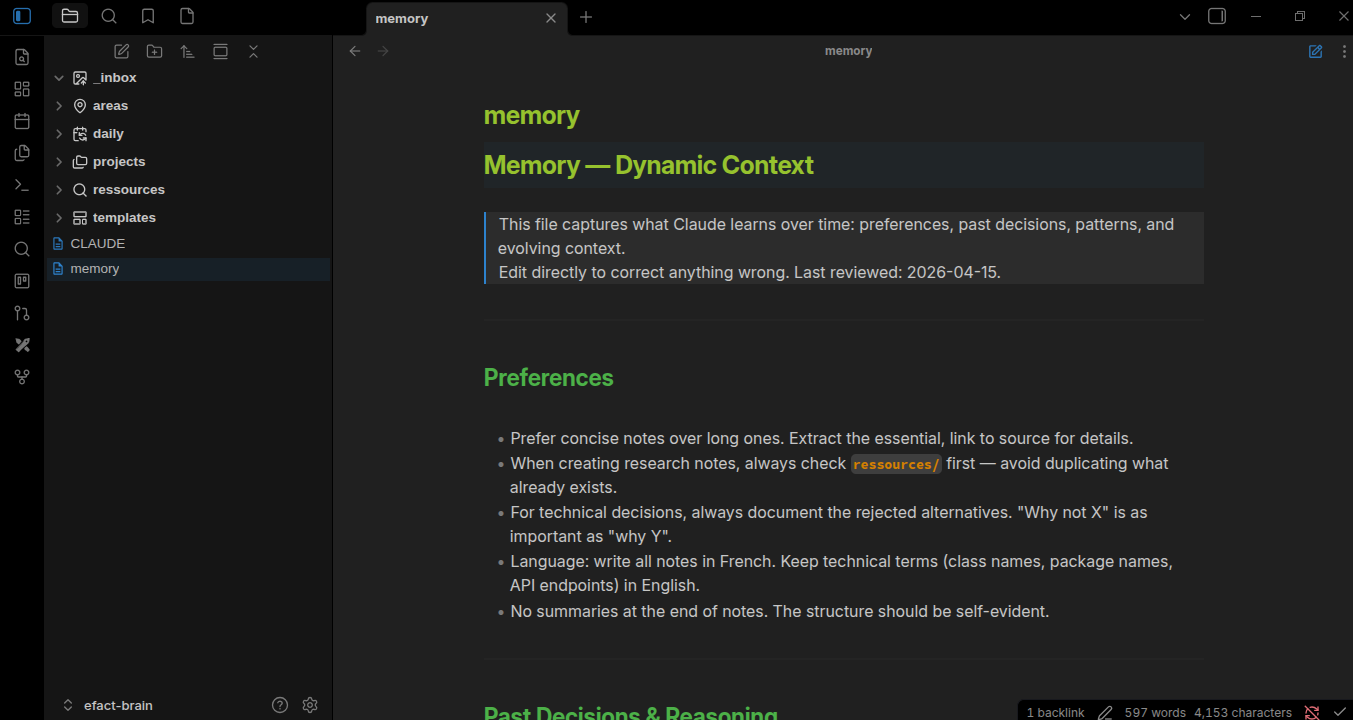
Don't ask Claude to record speculative personality profiles, inferred preferences, or sensitive facts. Durable context should be something you can inspect, correct, and justify keeping.
Safety, Privacy, and Recovery
Claude Code normally sends relevant prompt and file context to the configured model service; a local Obsidian vault does not make cloud model processing local. Review Anthropic's Claude Code data-usage guide for current data flow, retention, and account-setting details. Use the local Ollama workflow when on-device model processing is a requirement, while recognizing that local plugins and optional web features have their own boundaries.
Before every broader automation:
- Commit or copy the vault so changes are recoverable.
- Name allowed input folders and the single output path.
- Keep secrets outside the readable scope.
- Read permission requests rather than approving them reflexively.
- Inspect changed paths and the rendered Markdown.
- Restore first if unexpected edits make the current state unclear.
Anthropic's CLI reference documents permission-related flags, including allowed and disallowed tools. Treat broad bypass options as unsafe for a personal vault unless you have a separate sandbox and understand the consequences.
Limitations and When Not to Use This System
Claude can miss relevant notes, misread task syntax, invent connections, and produce confident summaries unsupported by the sources. Wikilinks and properties improve navigation; they don't guarantee correct reasoning.
This workflow is not ideal when the vault contains regulated or highly sensitive material that cannot be sent to the configured service, when there is no reliable backup, or when users cannot review file changes. It also isn't a background automation system by itself. Claude Code acts during a session or an explicitly configured automation, not simply because Obsidian is open.
Frequently Asked Questions
Does Claude Code Learn My Vault Over Time?
Not in the sense of training itself on or indexing your notes. Claude Code can carry repository-scoped learnings through auto memory, while CLAUDE.md supplies instructions you maintain. Reviewed vault summaries can improve later work only when a session reads them as context.
Should CLAUDE.md Contain Personal Details?
Only include context required for the workflow. Folder rules, property conventions, allowed paths, and review standards are usually more useful than a personal profile.
Can Claude Update Existing Notes Automatically?
It can request edits, but start with generated drafts. Allow direct updates only for narrow, recoverable transformations whose sources and target paths are explicit.
How Large Can the Vault Be?
Vault size alone is not the right boundary. Scope each request to relevant folders, properties, dates, or links so the task fits the available context and remains reviewable.
What Is the Best First Automation?
A daily plan or weekly review is a good candidate because its inputs, output, and verification criteria are easy to define. Run it manually several times before turning the prompt into a reusable skill.