Some of Obsidian’s most interesting tools appear on GitHub before they reach the Community Store. These projects often solve narrow problems that mainstream plugins overlook: testing prereleases, building plugins from the terminal, running an AI-facing MCP server, or embedding one precise region of a PDF.
This guide examines the strongest options from our curated list, explains what each one contributes, and identifies the setup or compatibility tradeoffs that matter before installation. It covers plugin infrastructure, structured task management, AI automation, and visual or writing tools.
Jump to a category: Plugin Management & Infrastructure · Data Structuring & Task Management · Artificial Intelligence & Automations · Media, Visualization & Aesthetics
Plugin Management & Infrastructure
These tools help you install, organize, test, or develop other plugins. Two are now store-listed, but they remain relevant because they make the rest of this guide easier to use.
1. BRAT
BRAT (Beta Reviewers Auto-update Tester) does not add a flashy feature to your notes, but it expands what your Obsidian setup can become. It provides access to experimental and specialized projects beyond the usual plugin directory while reducing the maintenance involved in keeping them installed. For anyone exploring the less visible side of the Obsidian ecosystem, BRAT is one of the most useful infrastructure tools to install first.
The practical advantage is repeatability. Instead of creating a plugin directory and replacing release files by hand every time a developer publishes a beta, you register the repository in BRAT and let it check for compatible updates. That makes experiments easier to maintain, especially when you test several projects.
Best for: Users who deliberately test beta plugins or themes and want a manageable update path.
Consider before installing: BRAT simplifies delivery; it does not review the code you add. Confirm that the repository belongs to the expected developer, read its release notes, and keep a vault backup. For a complete walkthrough, use our local Obsidian plugin installation guide.
2. Better Manager
Better Manager treats plugins as parts of separate workflows rather than one long list of extensions. You can organize tools for writing, research, task management, or publishing and activate the combinations you need. This makes it useful for people who use the same vault for several purposes and want tighter control over which plugins run in each working session.
The current project goes beyond grouping. It includes delayed startup, bulk actions, GitHub installation, transferable plugin and theme packs, ribbon ordering, and a guided process for narrowing down plugin conflicts. Those controls become useful when a vault has accumulated enough extensions that startup behavior and troubleshooting are no longer simple.
Best for: Plugin-heavy vaults, users who maintain several setups, and people diagnosing extension conflicts.
Consider before installing: A second management layer can make startup behavior less obvious. Document which plugins Better Manager controls, export a transfer pack before major changes, and restore the original state after conflict testing.
3. obsidian-plugin-cli
For developers, repeatedly building a plugin and moving its files into a test vault can interrupt the coding process. `obsidian-plugin-cli` brings those steps into the terminal, where development builds, release bundles, and test installations can be handled through consistent commands. It is most useful for maintaining an isolated development vault and testing changes before publishing a plugin.
Its place in this list is infrastructure rather than end-user functionality. A command-line workflow can reduce manual packaging errors and make build steps reproducible, but it assumes you are comfortable with Node.js, npm, and terminal commands. Use a disposable test vault so a development build cannot damage the notes or settings you rely on every day.
Best for: Plugin authors who want a repeatable build, install, and release workflow.
Consider before installing: Check the package’s current commands and dependencies before adding it to a development project. Pinning a known version can prevent an unexpected tool update from changing a release workflow halfway through development.
Data Structuring & Task Management
The plugins in this section turn plain files into more structured work systems. They solve different problems: KanbanFlow manages projects inside the vault, while Obsidian Reminders Sync connects daily-note checkboxes to Apple’s task application.
4. KanbanFlow
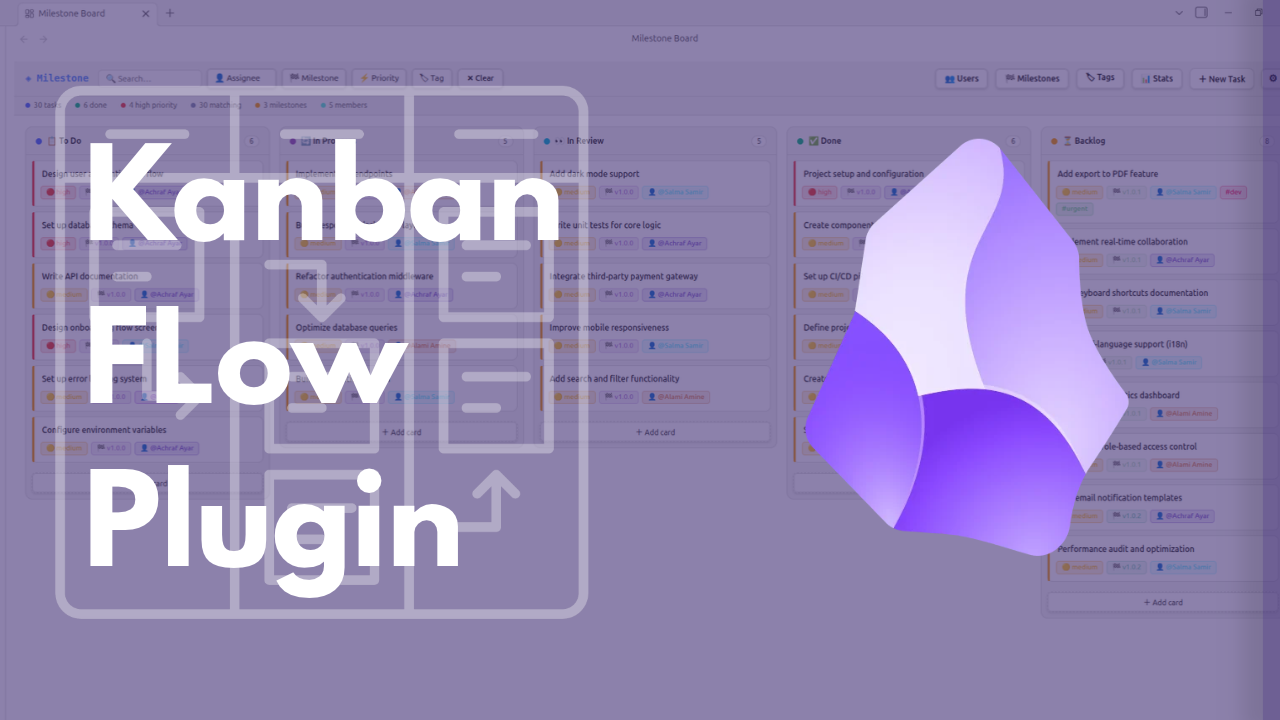
KanbanFlow offers structured project management without requiring a separate task service. It combines draggable cards with assignees, milestones, priorities, tags, and persistent filters, while storing the board in a JSON file inside the vault. That structure is convenient for Git or Obsidian Sync, although simultaneous edits to the same board file may require extra care in collaborative vaults.
KanbanFlow fits work that has more structure than a checklist but does not need a hosted project platform. A board can show responsibility, urgency, and milestones in one place, while remaining part of the vault’s file structure. Persistent filters are especially useful when one board contains several projects or contributors.
Best for: Product planning, editorial pipelines, study projects, and small teams that already coordinate through an Obsidian vault.
Consider before installing: JSON is less forgiving of simultaneous file edits than separate Markdown task notes. Establish one sync method, avoid editing the same board concurrently on multiple devices, and test conflict recovery before trusting it with active team work. Our detailed KanbanFlow guide covers its project-management workflow.
5. Obsidian Reminders Sync
Obsidian Reminders Sync builds an automated bridge between Markdown checkboxes and Apple Reminders. Its Claude Code hooks detect task changes, while Python and AppleScript handle synchronization with the native macOS app. This approach offers more control than a closed integration, but it also requires a technical setup and is unsuitable for Windows, Linux, or users who do not use Claude Code.
The appeal is that a task can remain visible in the daily note where its context lives and in Reminders where notifications and Apple-device access are convenient. The repository documents macOS 10.15 or later, Python 3.7 or later, AppleScript permissions, and a daily-note checkbox workflow.
Best for: macOS users who actively use both Obsidian daily notes and Apple Reminders and are already comfortable configuring Claude Code hooks.
Consider before installing: Back up both sides before the first two-way sync, begin with a small test list, and confirm how completed, renamed, or duplicated tasks behave. The project advises against syncing from several devices at the same time. If Claude Code is new to you, start with our guide to using Claude Code with an Obsidian vault.
Artificial Intelligence & Automations
6. Vault MCP
For users building AI-assisted research or knowledge-management systems, Vault MCP provides a practical bridge into Obsidian. Its embedded server gives external agents structured access to notes while keeping the workflow centered on local Markdown files. The plugin is desktop-only and requires more configuration than a conventional in-app chatbot.
Vault MCP exposes operations for reading and writing files, searching content or filenames, listing vault paths, applying targeted edits, and rolling back the most recent supported edit. Its distinctive feature is schema-based tooling: you can describe a structured note with JSON Schema, and the plugin turns that structure into a tool an AI client can call. This can reduce malformed YAML or missing fields when an agent updates repeatable records.
The server supports SSE and Streamable HTTP connections. Clients that expect a standard-input connection, including some Claude Desktop setups, need a local proxy such as mcp-remote. Optional bearer-token authentication is available, and individual tools can be configured.
Best for: Developers and advanced users who want an external MCP-compatible assistant to work with vault files through explicit tools.
Consider before installing: An AI connection with write access can change many notes quickly. Bind the service to localhost unless you intentionally need network access, enable authentication, expose only the tools required for the workflow, and test rollback behavior on copied data. Compare this approach with the in-app tools in our Obsidian AI plugin guide.
Media, Visualization & Aesthetics
These projects improve how source material, note identity, and language appear inside a vault. Better PDF 2 and Wordsmith remain GitHub-installed projects in this check; Banners Reloaded is now store-listed.
7. Better PDF 2
Better PDF 2 gives you more control over how PDF material appears inside an Obsidian note. You can display individual pages or selected page ranges, adjust their size and orientation, and focus on specific areas of a document. It is useful for research notes that need to preserve visual context from reports, textbooks, or academic papers.
The plugin uses pdf code blocks with JSON or YAML options. A block can point to a vault PDF, choose one page or a range, scale the output, rotate it, make it link back to the source, or define a rectangular cutout. This lets a research note show the exact diagram or passage being discussed instead of embedding a long document at page one.
Best for: Literature notes, technical manuals, scanned archives, and courses where page layout or diagrams carry meaning.
Consider before installing: Cropping coordinates and custom code blocks take time to configure. Keep the original PDF in a stable vault path, use clear captions around excerpts, and verify that your chosen rendering works on every device used to read the note.
8. Banners Reloaded
Banners Reloaded provides a flexible design system for decorating Obsidian notes with image headers. Beyond choosing an image, users can reposition its focal point, adjust its height, apply effects, and overlay titles or icons. Its property-driven controls are especially valuable for templates that need a consistent appearance across many notes.
Banner priority can flow from a vault-wide default to tag rules and finally to a note-specific override. Header templates can pull the filename or frontmatter values into the visible design, while separate sizing controls account for desktop, mobile, embeds, and link previews. A migration tool converts older banner paths to standard wikilinks.
Best for: Dashboards, maps of content, project hubs, and templates where visual recognition helps navigation.
Consider before installing: Large remote images can slow a visual vault and may disappear when offline. Prefer optimized local files, use one organized banner folder, and treat decoration as a navigation aid rather than a substitute for clear titles and properties. See our complete Obsidian Properties guide before building metadata-driven banner templates.
9. Wordsmith
Wordsmith combines local lexical databases with optional online thesaurus services to provide a wider range of vocabulary suggestions. Writers can use WordNet and Moby offline or connect additional services when they need more results. This flexible setup suits both privacy-conscious users and those who prefer extensive language references.
Wordsmith searches more than synonyms. It can return antonyms, related words, hypernyms for broader categories, hyponyms for more specific terms, and spelling suggestions. A compact popover supports quick replacements near the cursor, while the full lookup view separates meanings and data sources. The documented keyboard controls make it practical during longer editing sessions.
Best for: Essayists, fiction writers, editors, and anyone refining language in long-form notes.
Consider before installing: Offline dictionaries consume local storage, while optional premium services may require separate accounts and API keys. Enable only the sources you need and remember that a related word is not automatically the right word for a sentence’s tone or meaning.
Quick Comparison
How to Install an Unlisted Obsidian Plugin Safely
Unlisted plugins generally arrive through BRAT or as release files copied into the vault. Prefer a published GitHub release over raw source files because Obsidian needs compiled output, usually main.js and manifest.json, plus styles.css when the project provides it.
- Back up the vault. Confirm that you can restore both notes and the hidden
.obsidianconfiguration directory. - Verify the repository. Match the owner and repository name, inspect recent releases and open issues, and read the installation instructions.
- Inspect the manifest. Check the plugin ID, minimum Obsidian version, and whether it is desktop-only.
- Choose BRAT or manual installation. BRAT is convenient for supported beta releases. For manual installation, place the compiled files in
.obsidian/plugins/<plugin-id>/. - Enable one new tool at a time. Restart or reload Obsidian, enable the plugin, and test it in a copied or disposable vault.
- Review access and network behavior. Pay special attention to tools that read files outside the vault, accept API keys, run local servers, or write through automation.
- Plan updates and removal. Record where the plugin came from and how to remove its data if the project becomes incompatible or unmaintained.
Obsidian’s official plugin security guidance explains that community plugins run with broad application access. The same caution applies more strongly to manually installed code because it sits outside the normal catalog workflow.
Which Plugin Should You Try First?
Choose based on a concrete bottleneck:
- Start with BRAT if your main goal is testing GitHub-hosted plugins with easier updates.
- Choose KanbanFlow when a checklist no longer captures ownership, milestones, or the stages of a project.
- Choose Obsidian Reminders Sync only when macOS, Apple Reminders, daily notes, and Claude Code are already parts of your routine.
- Choose Vault MCP when you understand MCP permissions and want an external AI agent to perform controlled vault operations.
- Choose Better PDF 2 when your notes regularly discuss particular pages, diagrams, or cropped regions of PDFs.
- Choose Wordsmith when vocabulary lookup interrupts your writing flow.
- Use Better Manager or Banners Reloaded through the Community Store now that both have catalog entries.
Install one at a time and use it for a real task before keeping it. A smaller setup with a clear purpose is easier to update, debug, and trust than a vault filled with interesting tools that overlap.
Frequently Asked Questions
Are Obsidian plugins from GitHub safe?
A GitHub location does not prove safety. Public source makes inspection possible, but users still need to verify the repository, release files, permissions, network behavior, and maintenance history. Test unfamiliar code in a separate vault and maintain recoverable backups.
What is the easiest way to install an unlisted Obsidian plugin?
BRAT is usually the most convenient option when the repository publishes compatible releases. Otherwise, download the compiled release files and place them in a folder whose name matches the plugin ID under .obsidian/plugins/. Do not assume that cloning TypeScript source will produce files Obsidian can run.
Why are some Community Store plugins included in this article?
BRAT, Better Manager, and Banners Reloaded were part of the curated research list, but the current official registry shows them in the store. They remain here with prominent status labels because BRAT helps install unlisted tools, Better Manager organizes them, and Banners Reloaded demonstrates how availability can change between research and publication.
Will an unlisted plugin update automatically?
A manually copied plugin normally stays at the installed version until you replace its files. BRAT can check and install updates for repositories it manages. Before updating, read the release notes and retain a backup in case a new build changes stored data or settings.
Can unlisted plugins work on Obsidian Mobile?
Only if their code and dependencies support mobile. Check isDesktopOnly in manifest.json and read the project documentation. Tools that depend on Node.js APIs, local servers, AppleScript, operating-system files, or desktop-only applications will not provide a normal mobile experience.
Final Recommendation
The most broadly useful combination is BRAT for controlled installation and one purpose-built plugin that solves a problem you already have. KanbanFlow is the strongest choice for structured projects, Better PDF 2 is the clearest research enhancement, Wordsmith supports focused editing, and Vault MCP offers the deepest automation for users prepared to manage its access carefully.
Treat the official registry and each project’s release page as living sources. Availability, compatibility, and maintenance can change after publication. Before adding any tool to an important vault, confirm its current status, test it with copied data, and make sure your backup can restore both notes and settings.
How We Chose and Verified These Tools
A GitHub repository alone is not enough to make a useful recommendation. We looked for a clear purpose, usable documentation, installable output or instructions, and a workflow that adds something more specific than a common Community Store plugin. We also checked the exact repository owner and name against Obsidian’s official catalog instead of relying on a plugin’s README, which may lag behind a submission or approval.
That distinction matters here. A plugin can move into the store while an article is being prepared, and different projects can share almost identical names. Better PDF 2 is separate from the older Better PDF Plugin, for example, while the Wordsmith project covered below is separate from the catalog entry named Word-Smith.
“Unlisted” also does not mean unsafe or low quality. It means Obsidian’s normal discovery and installation path does not cover that exact project. You take on more responsibility for checking the source, deciding when to update, and testing the tool against a copy of your vault.
Checked September 12, 2026: KanbanFlow, Obsidian Reminders Sync, Vault MCP, Better PDF 2, and Wordsmith remain unlisted. BRAT, Better Manager, and Banners Reloaded are now in the Community Store.