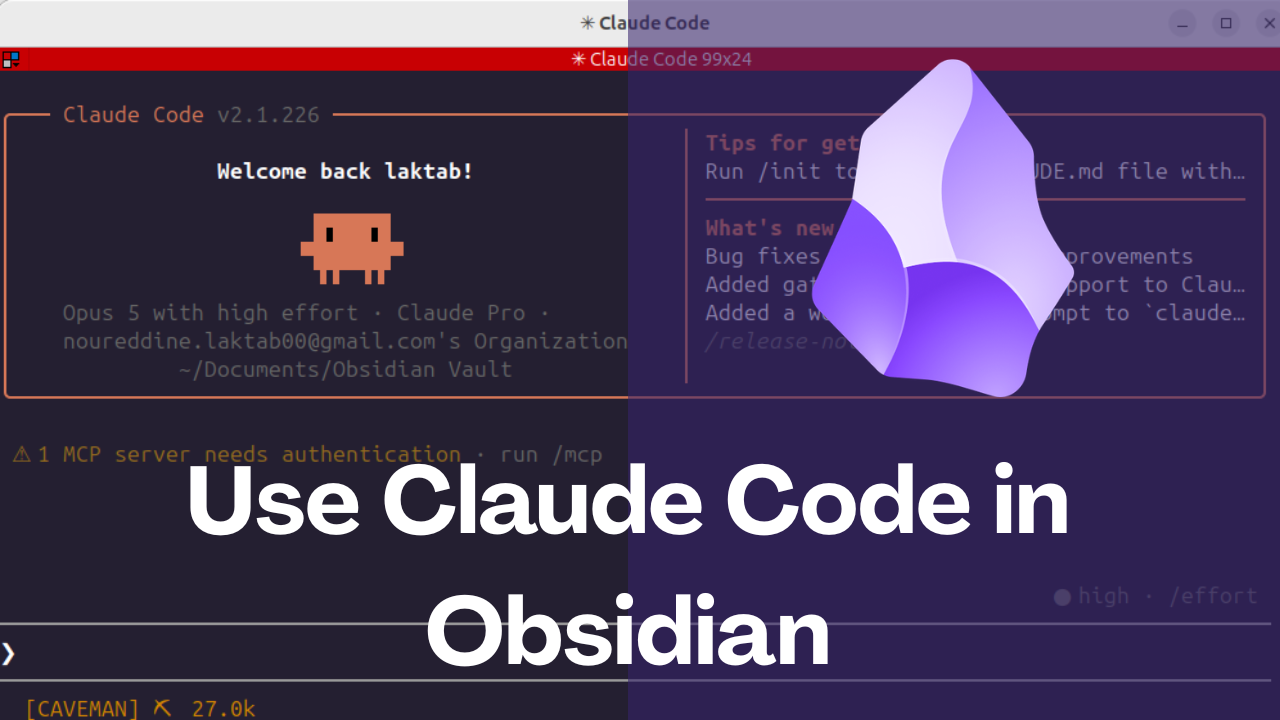
Claude Code can work directly with an Obsidian vault because the vault is a folder of Markdown files. You don't need an Obsidian plugin for the basic workflow: open a terminal in the vault, launch Claude Code, ask for one narrowly scoped task, inspect the proposed file operations, and review the result in Obsidian.
This guide is intentionally limited to that first safe session. If you already know how to launch Claude Code and want a folder architecture, persistent project instructions, daily notes, research, and weekly reviews, use the separate Claude Code second-brain guide.
What Claude Code Can Access in a Vault
Claude Code is a terminal agent, not an Obsidian extension. When launched inside a vault, it can inspect ordinary files under that working directory and request permission to read, create, or edit them. Obsidian then notices filesystem changes and refreshes its file list.
That simplicity is useful, but it also means the scope is broader than the note currently open in Obsidian. A vault commonly contains attachments, templates, plugin settings under .obsidian/, and sometimes credentials copied into notes. Treat the entire folder as potentially readable.
.obsidian/Prerequisites
Install Obsidian and locate the vault folder on disk. You also need Claude Code and an authentication method supported by Anthropic. Follow the current official Claude Code setup guide because installation methods, operating-system support, and authentication options can change.
Confirm the command is available:
claude --versionThen create a recoverable copy of the vault. A normal folder copy is enough for a first experiment. Git is useful when you already understand it, but a sync service is not automatically a backup: unwanted edits can synchronize too.
Step 1: Open the Vault Folder in a Terminal
In Obsidian, use the vault switcher or your file manager to confirm the exact folder. Then change into it. Quote paths that contain spaces:
cd "$HOME/Documents/Obsidian Vault"
pwd
ls
On PowerShell, the equivalent path may look like:
Set-Location "$HOMEDocumentsObsidian Vault"
Get-Location
Get-ChildItem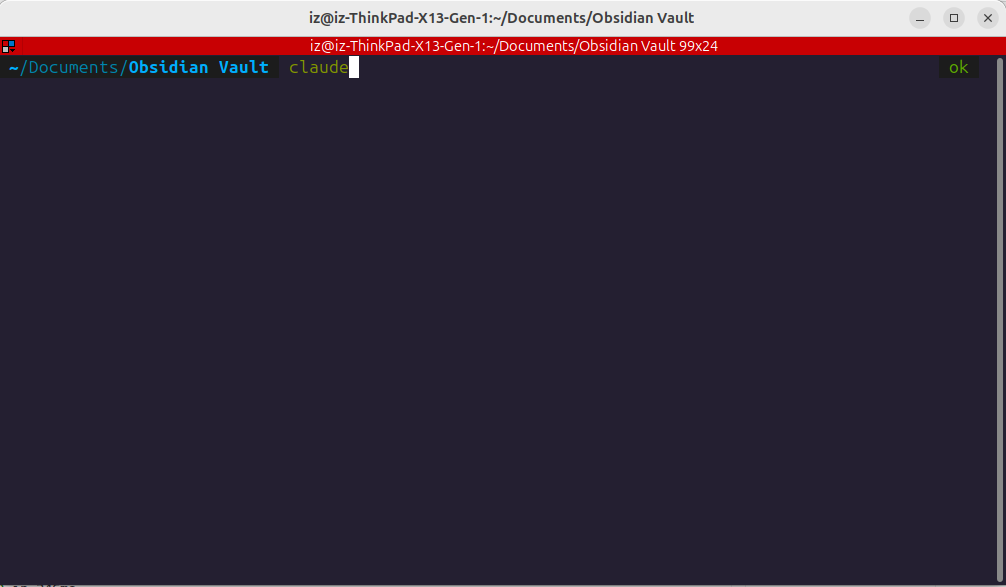
Don't copy the earlier pattern cd "~/Documents/...". In many shells, a tilde inside quotes is not expanded to the home directory. Using $HOME on macOS/Linux or PowerShell's $HOME avoids that ambiguity.
Why the Working Directory Matters
Anthropic's CLI reference shows the normal sequence as changing into a project and running claude. For an Obsidian workflow, the vault is the project. Check pwd before launch so you don't accidentally start one directory above the vault and expose unrelated files.
Step 2: Launch Claude Code and Inspect Before Writing
Start an interactive session:
claude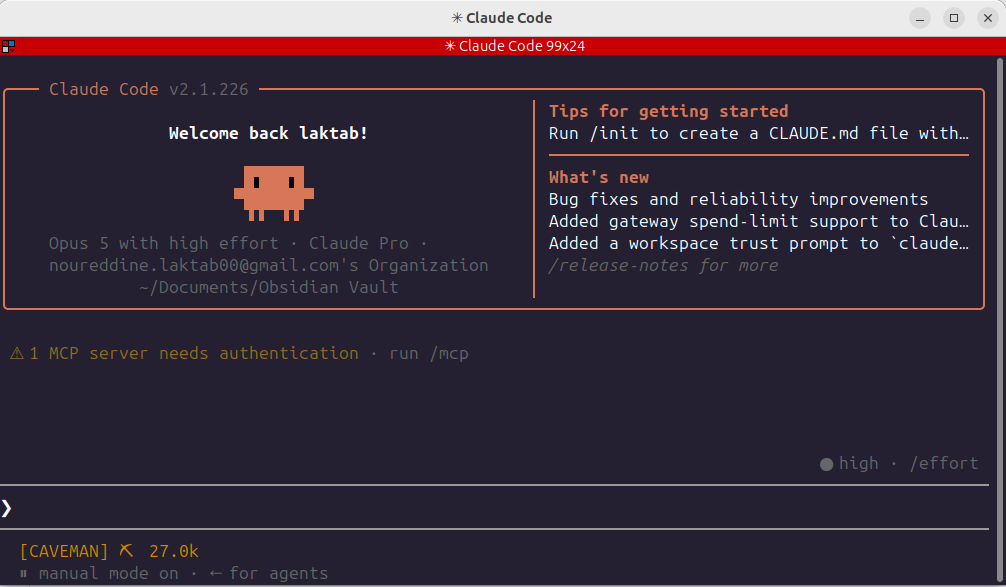
Begin with a read-only inventory prompt:
Do not edit any files. List the top-level folders in this vault, count the
Markdown files in each, and tell me which files you would inspect to summarize
completed project tasks. Exclude .obsidian, attachments, and templates.
This tests three things: Claude is in the correct folder, it understands the excluded areas, and its plan matches your intent. If the proposed scope is wrong, correct it before approving a tool call.
Step 3: Give One Bounded Note Task
After the inventory looks right, ask for one new file. Name both the input area and output path:
Read Markdown files only in Projects/Active. Create Summaries/active-projects.md.
For each project, include its source note, completed tasks, open tasks, and any
explicit deadline. Do not infer missing deadlines. Do not edit source notes,
attachments, templates, or .obsidian settings. Show me the proposed content
before writing the file.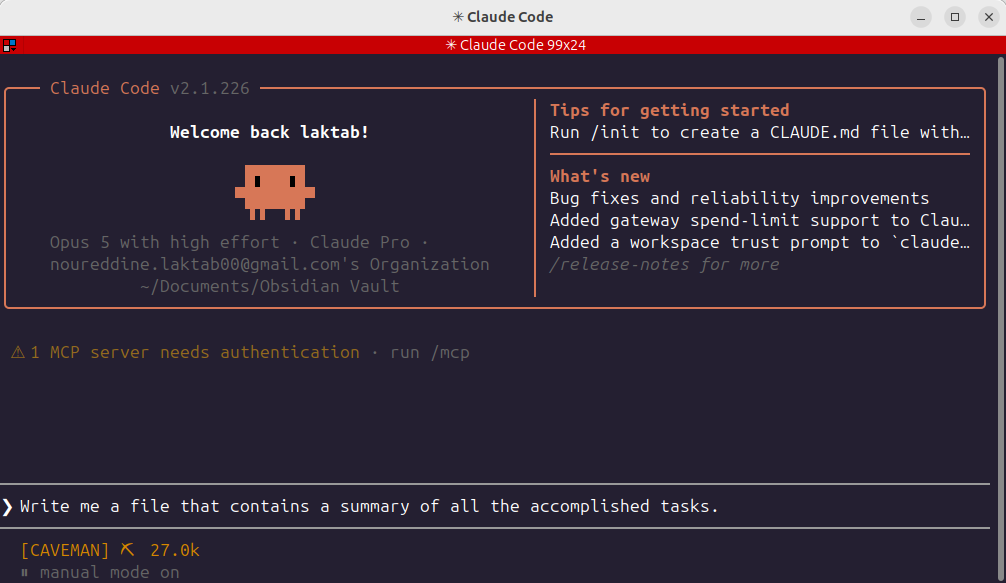
Specific constraints improve both safety and usefulness. “Summarize all accomplished tasks” leaves the search area, definition of accomplished, citation method, and destination unspecified.
When Claude requests permission, read the path and operation. A request to create Summaries/active-projects.md matches this task. A request to run a broad deletion, rewrite source notes, or inspect a parent directory does not.
Step 4: Review the Markdown in Obsidian
Once the file is written, Obsidian should display it in the file explorer. Open it and verify every task against the linked source note.
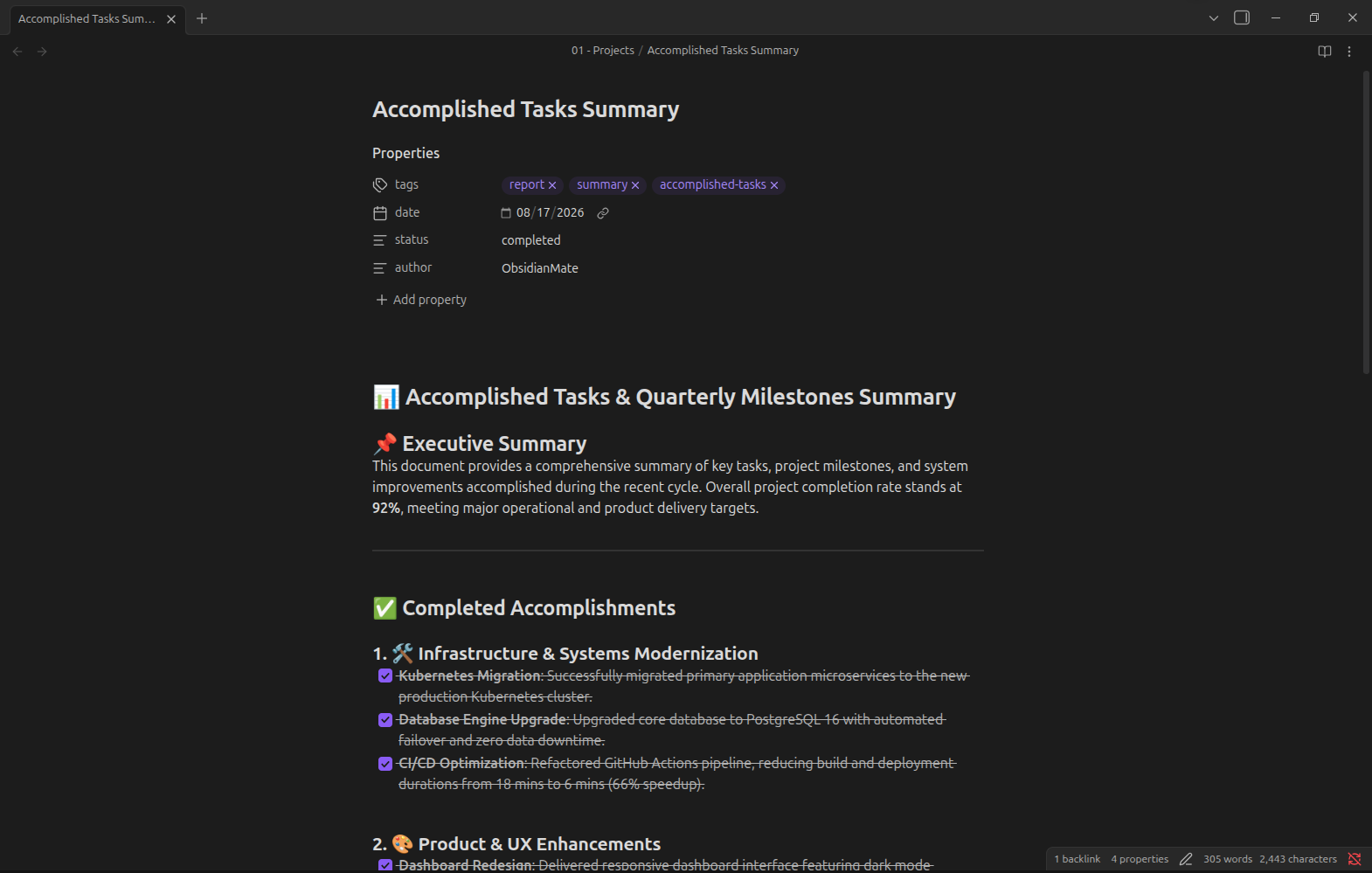
Use this review checklist:
- The note exists at the requested path and no second file was created.
- Each completed task is actually marked complete in a source note.
- Deadlines were copied rather than invented.
- Internal links use your vault's naming convention.
- YAML frontmatter, if added, is valid and uses existing property names.
- No source note, attachment, or
.obsidian/file changed.
If the vault is under Git, run git status --short and git diff -- Summaries/active-projects.md. Otherwise, compare the vault with the backup or inspect recently modified files in your file manager.
Step 5: Add Minimal Vault Instructions
Once the basic task works, create a short CLAUDE.md at the vault root. Anthropic's memory documentation describes this file as project instructions loaded into Claude Code's context. It should contain operating rules, not your entire personal history.
# Vault instructions

- Notes are Markdown. Preserve existing YAML property names.
- Never edit .obsidian/ or Attachments/ unless I explicitly request it.
- New summaries belong in Summaries/.
- Use [[wikilinks]] for internal note links.
- Cite the source note after every extracted decision or task.
- Ask before renaming, moving, or deleting any file.
Run /context to confirm which instruction files were loaded. Use /memory to browse or edit memory files. Keep CLAUDE.md concise and review it when your vault conventions change.
Safe Scope Versus Second-Brain Automation
The two Claude Code articles serve different jobs:
Finish this guide before adopting the larger architecture. If you prefer an in-app assistant rather than a terminal agent, compare the options in Best AI Plugins for Obsidian. For local model processing, use the Ollama and Obsidian setup guide.
Troubleshooting
The `claude` Command Is Not Found
Return to Anthropic's setup guide and verify the installed method. Open a new terminal after installation so its PATH refreshes. Use claude doctor when the official installer recommends it; don't solve permission errors by blindly prefixing package installation with sudo.
Claude Cannot Find the Vault Notes
Run pwd and ls or their PowerShell equivalents. If you see the parent Documents folder instead of the vault's folders, exit and relaunch from the correct path.
Obsidian Does Not Show the New Note
Confirm that the file ends in .md and was created inside the open vault, not a similarly named folder. Use Obsidian's vault switcher to verify which directory the app currently has open.
Internal Links Point to the Wrong Notes
Ask Claude to use full vault-relative paths when duplicate filenames exist. Review links before approving batch replacements. Obsidian resolves [[wikilinks]] using vault context, so two notes with the same name can make a vague link ambiguous.
Too Many Files Were Changed
Stop the session and restore from the backup or revert only the reviewed Git changes. Don't ask the agent to “fix everything” while the unexpected edits are still unclear.
Frequently Asked Questions
Does Claude Code Require an Obsidian Plugin?
No. The basic integration works through the local filesystem. Obsidian and Claude Code read the same Markdown files.
Does Claude Code Work Offline With Obsidian?
The vault is local, but Claude Code normally needs network access for authentication and model processing. Anthropic's data-usage documentation explains what local Claude Code sends for inference and how retention differs by account type and settings. For on-device inference, use a local-model workflow such as Ollama instead.
Can Claude Code Create Wikilinks and Properties?
Yes. State the exact conventions in your prompt or CLAUDE.md, then validate the resulting Markdown and YAML in Obsidian.
Should Claude Code Edit the `.obsidian` Folder?
Not during a first workflow. That folder contains settings and plugin state. Exclude it unless you understand the exact file and have requested a specific change.
What Should I Automate Next?
Move from one digest to a repeatable daily or weekly workflow only after backups, source citations, output paths, and review steps are reliable. The AI second-brain guide covers that next stage.