
We read articles, newsletters, and books every day. We highlight insightful passages, save quotes, and promise ourselves we'll remember them later. But more often than not, those highlights remain trapped inside Kindle, browser tabs, or read-it-later apps - completely disconnected from our personal knowledge base.
Manual copy-pasting is tedious and breaks your flow while reading. Connecting Readwise with Obsidian solves this problem by creating an automated bridge between your reading and your vault.
Disclosure: This article contains Readwise referral links. If you sign up through one of them, Obsidian Mate may earn a commission at no additional cost to you. You'll receive a 60-day free trial of Readwise and Reader.
What Is Readwise?
Readwise helps users collect, organize, and revisit highlights from everything they read across Kindle, Apple Books, Pocket, Instapaper, Medium, Twitter/X, PDFs, and podcasts.
With Readwise Reader, you can save articles and newsletters, read them in a clean interface, and highlight key passages as you go. Readwise then automatically exports and syncs those highlights into Obsidian as structured Markdown notes.
The result is a simple, seamless workflow where your reading becomes an active part of your growing Obsidian knowledge base.
The Workflow
Here is the simple flow for connecting your reading to your vault:
Read
↓
Highlight
↓
Readwise
↓
Obsidian
↓
Connect ideas to your knowledge base- Read: Consume web articles, eBooks, or newsletters in Readwise Reader or your preferred reading apps.
- Highlight: Select key quotes and write optional notes while reading.
- Readwise: Readwise automatically aggregates your highlights into one central library.
- Obsidian: The official Readwise Obsidian plugin exports your highlights directly into your vault.
- Connect: Link your imported highlights to existing notes using
[[wikilinks]]and tags.
1. Save an Article in Readwise Reader
To start the workflow, sign up for Readwise Reader with a 60-day free trial, then add a web article or newsletter using the browser extension or mobile app. Open the document inside Reader to begin reading and highlighting.
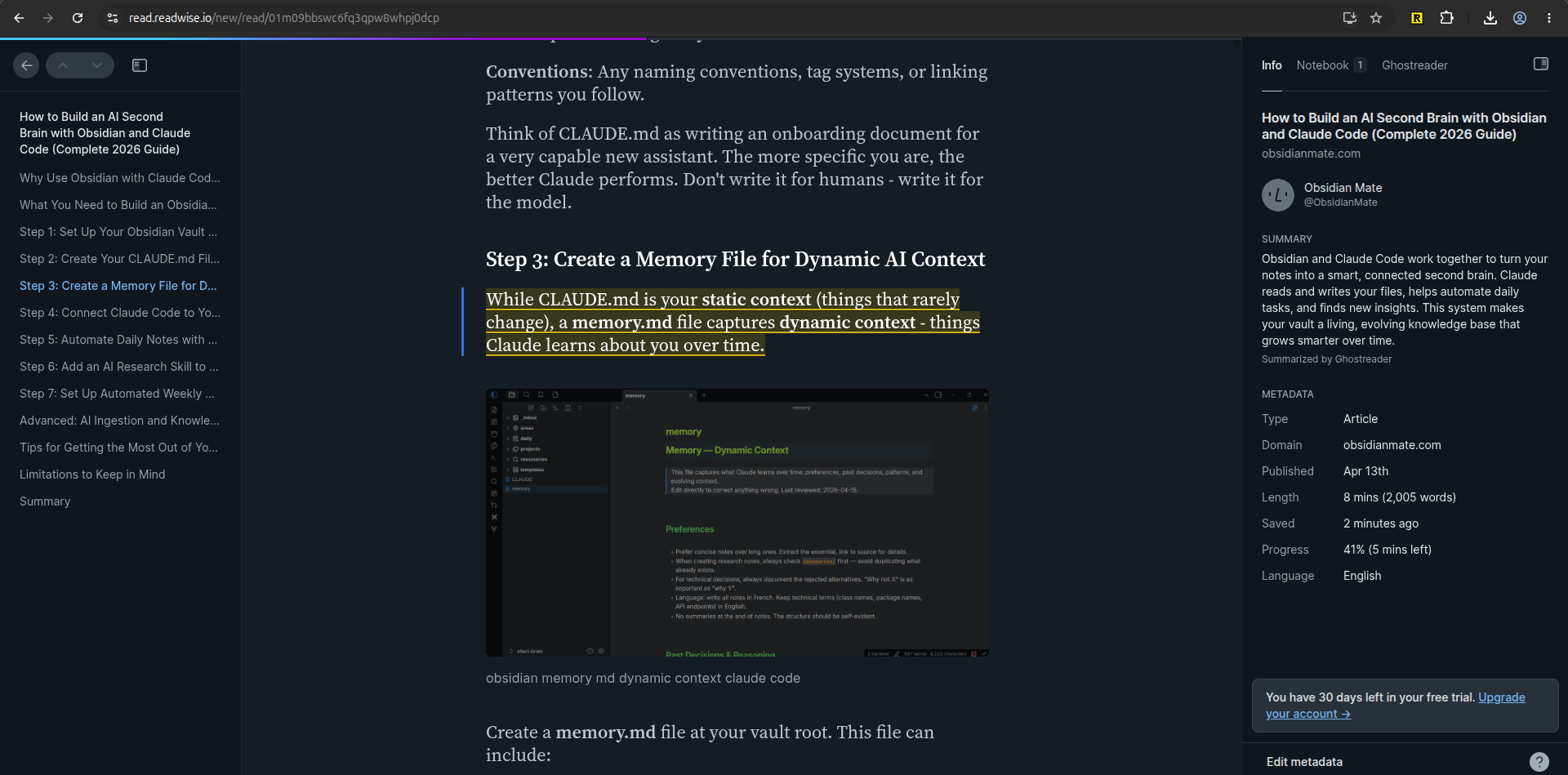
Save and highlight an article in Readwise Reader.
2. Highlight What You Want to Remember
As you read through the article, select text passages to highlight them. Readwise Reader allows you to assign highlight colors and attach custom notes or document-level annotations to explain why a passage matters to you.
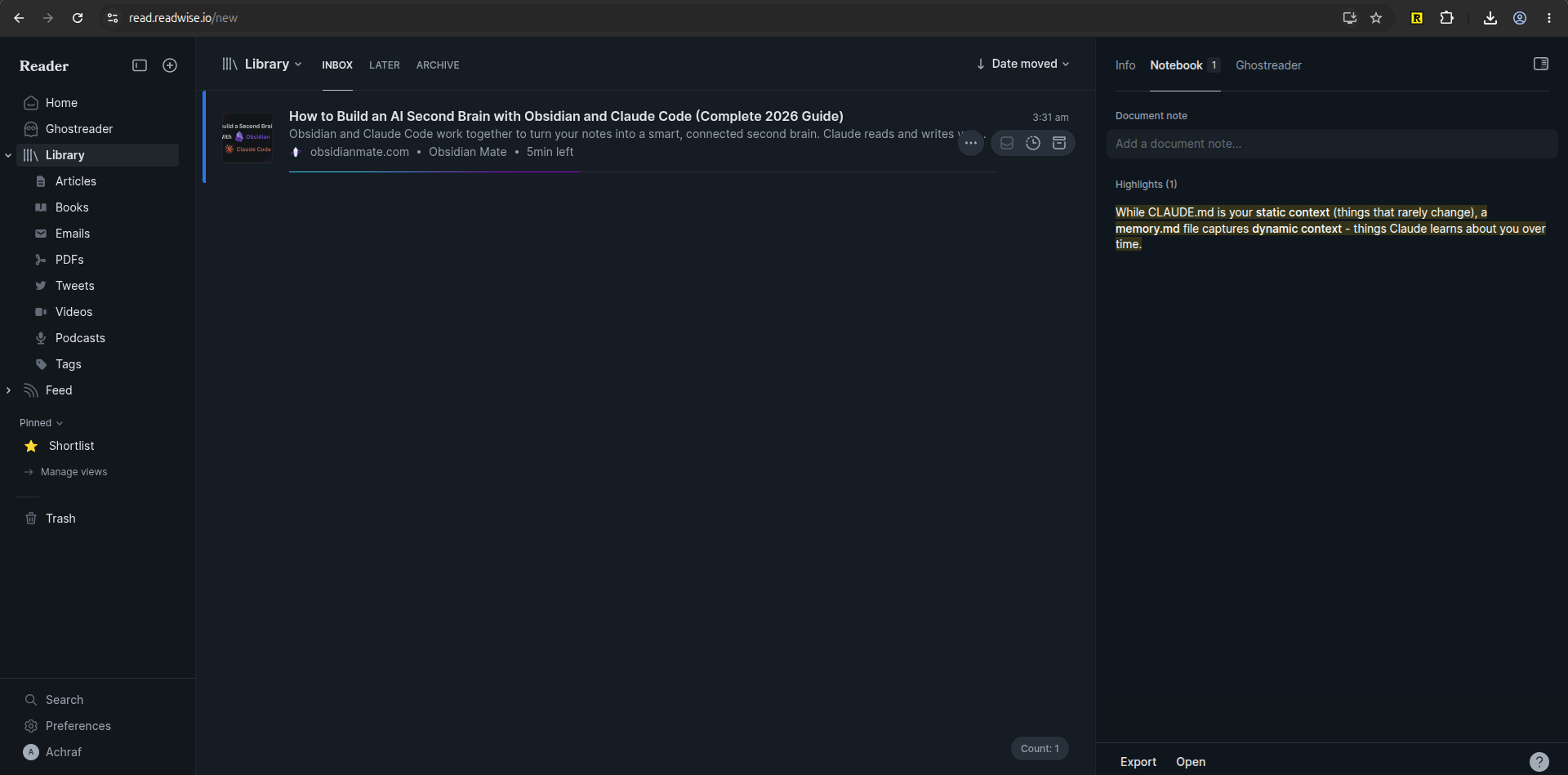
Highlight an important passage and add your own note.
3. Connect Readwise to Obsidian
To bring your highlights into your vault, install the official integration. Open Obsidian, navigate to Settings → Community plugins, search for Readwise Official (developed directly by readwiseio), and click Install.
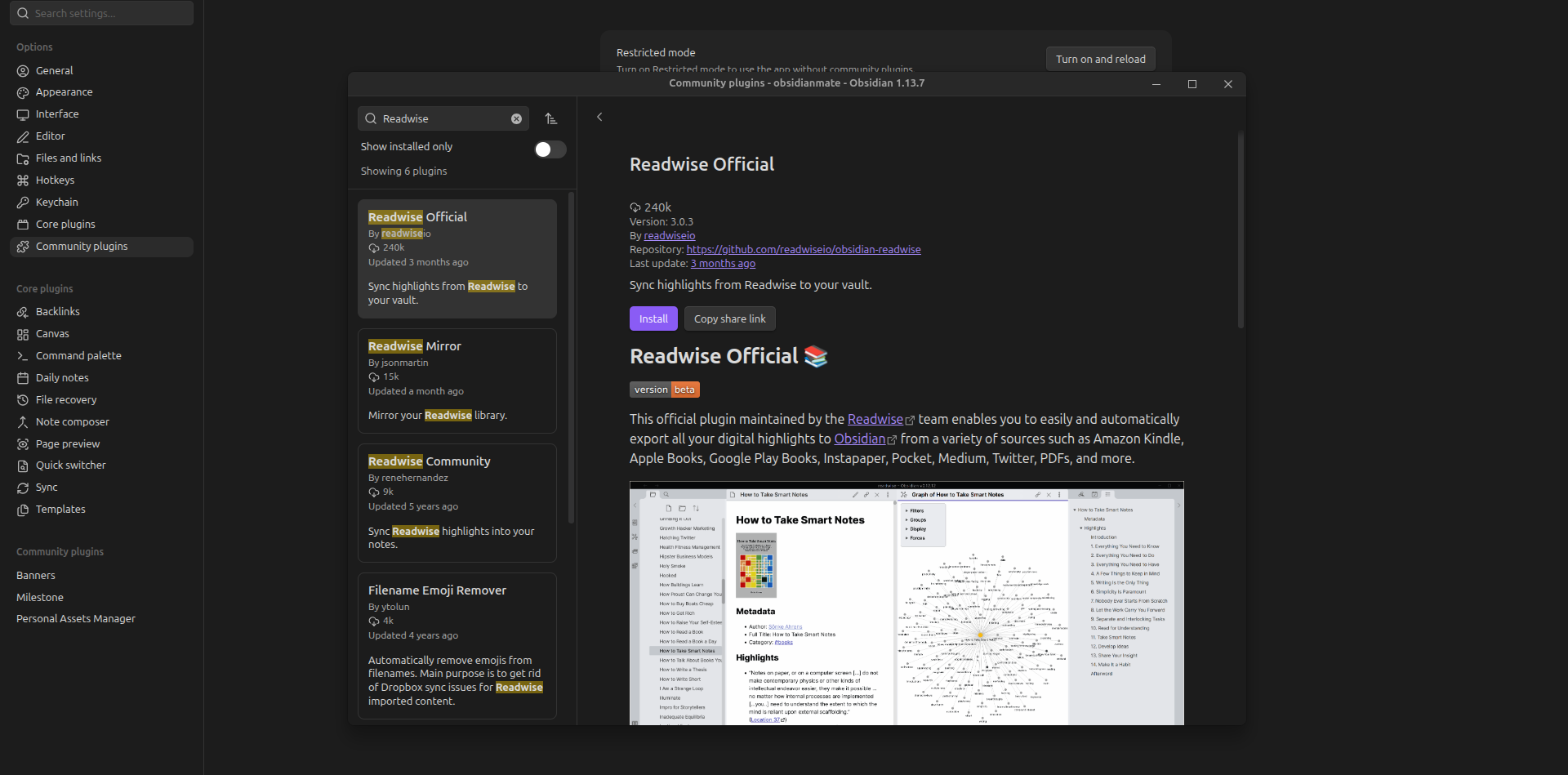
Connect Readwise to Obsidian using Readwise Obsidian Export.
4. Configure the Export
Once installed, enable the plugin and click the Connect button in the Readwise plugin settings inside Obsidian. This authenticates your account and links your vault to Readwise.
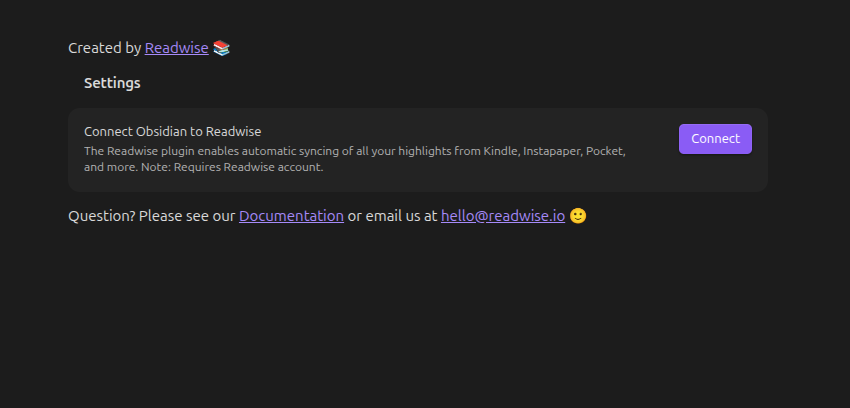
Choose how Readwise content is organized in your Obsidian vault.
5. Sync Your Highlights
Clicking Connect opens the Readwise Obsidian Export web configuration page (readwise.io/export/obsidian/preferences). Here, you can configure how content is organized - such as grouping notes by category folders (Books, Articles, Tweets, Podcasts) and customizing file naming conventions - before starting your sync.
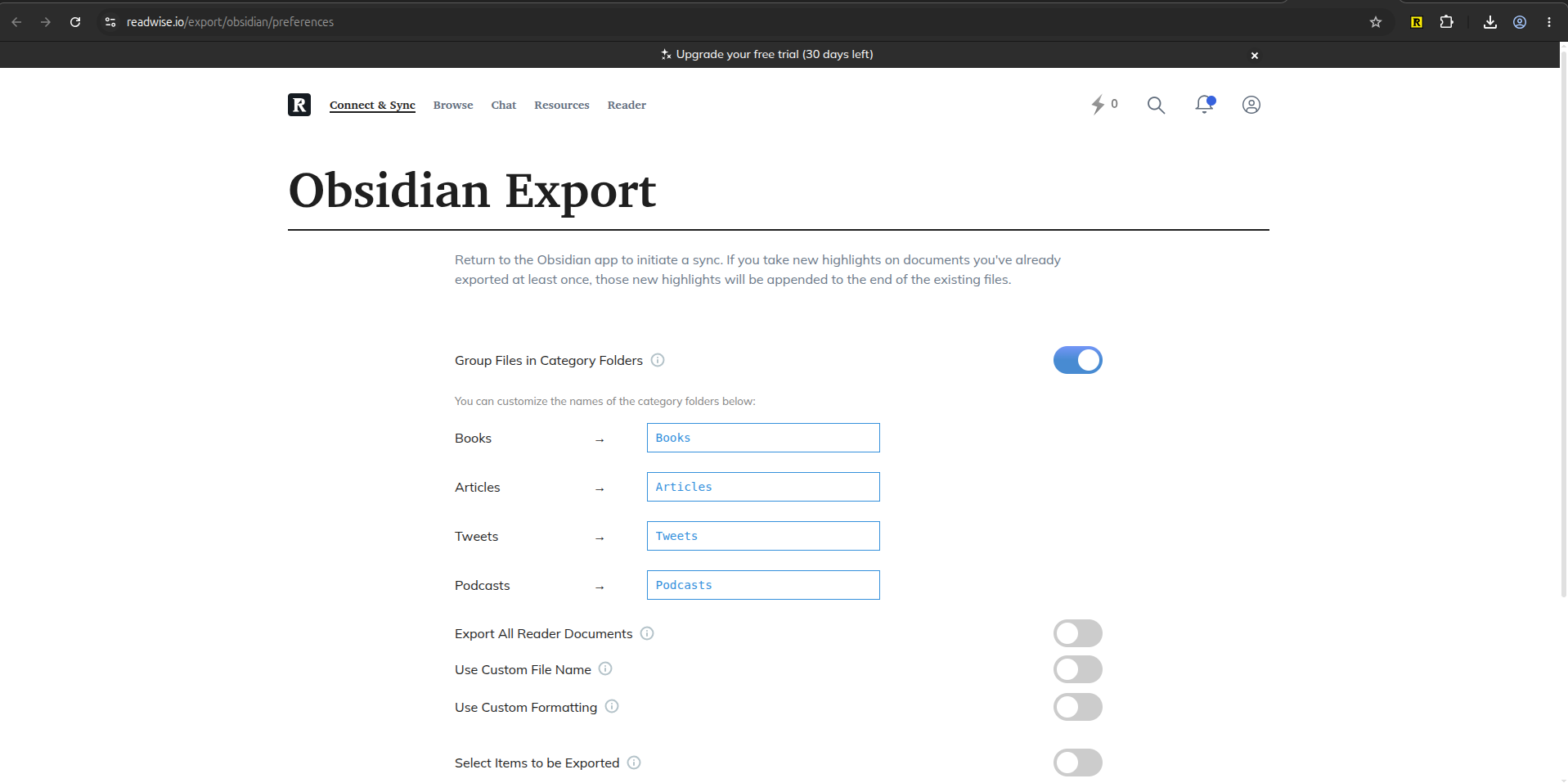
Start the first Readwise sync from Obsidian.
6. Your Highlights Are Now in Obsidian
Return to Obsidian and trigger your first sync. Readwise creates dedicated Markdown notes in your vault populated with title metadata, author info, source URLs, and formatted highlights.
Imported highlights serve as your raw material. Readwise brings the text into Obsidian, and you can then organize, tag, and connect them to your permanent notes.

Your Readwise highlights are now available inside Obsidian.
Take your highlights with you
Readwise makes it easy to bring what you read into Obsidian.
Get 60 days free, double the standard 30-day trial:
Readwise vs. Manual Copy-Pasting
[[wikilinks]]Why This Workflow Is Useful
The main benefit of using Readwise with Obsidian is eliminating the friction between reading and building a personal knowledge base.
Instead of spending hours manually copying text, your reading automatically flows into your vault:
Read an article → highlight an idea → Readwise stores it → Readwise syncs it to Obsidian → connect it with your existing notes.
This shifts your energy away from administrative copying and onto active thinking, synthesizing ideas, and creating links between concepts.
Pro Tips for Managing Highlights in Obsidian
- Group by Category: Keep category folders enabled (
Readwise/Articles,Readwise/Books) to keep your vault hierarchy clean. - Synthesize Permanent Notes: Don't let highlights sit idle. Create separate Zettelkasten or atomic notes for key ideas and link back to your Readwise source notes.
- Query with Dataview: Use the Dataview plugin to dynamically query recently imported articles and highlights.
- Combine with Essential Plugins: Explore our guide to 7 must-have Obsidian plugins to further automate your vault.
Frequently Asked Questions
Is Readwise free to use with Obsidian?
Readwise is a paid subscription service, but you can sign up through the Obsidian Mate referral link to get a 60-day free trial of Readwise and Reader before subscribing.
Does Readwise automatically turn highlights into permanent notes?
No. Readwise exports clean Markdown notes containing your raw highlights, source URLs, and metadata into Obsidian. You organize, summarize, and connect those highlights into permanent notes within your knowledge base.
What reading sources can I sync to Obsidian with Readwise?
Readwise syncs highlights from Readwise Reader, Amazon Kindle, Apple Books, Pocket, Instapaper, Medium, Twitter/X, PDFs, and podcast apps.
Is the Readwise Obsidian plugin official?
Yes. The Readwise Official plugin is the official integration built and maintained directly by the Readwise team.