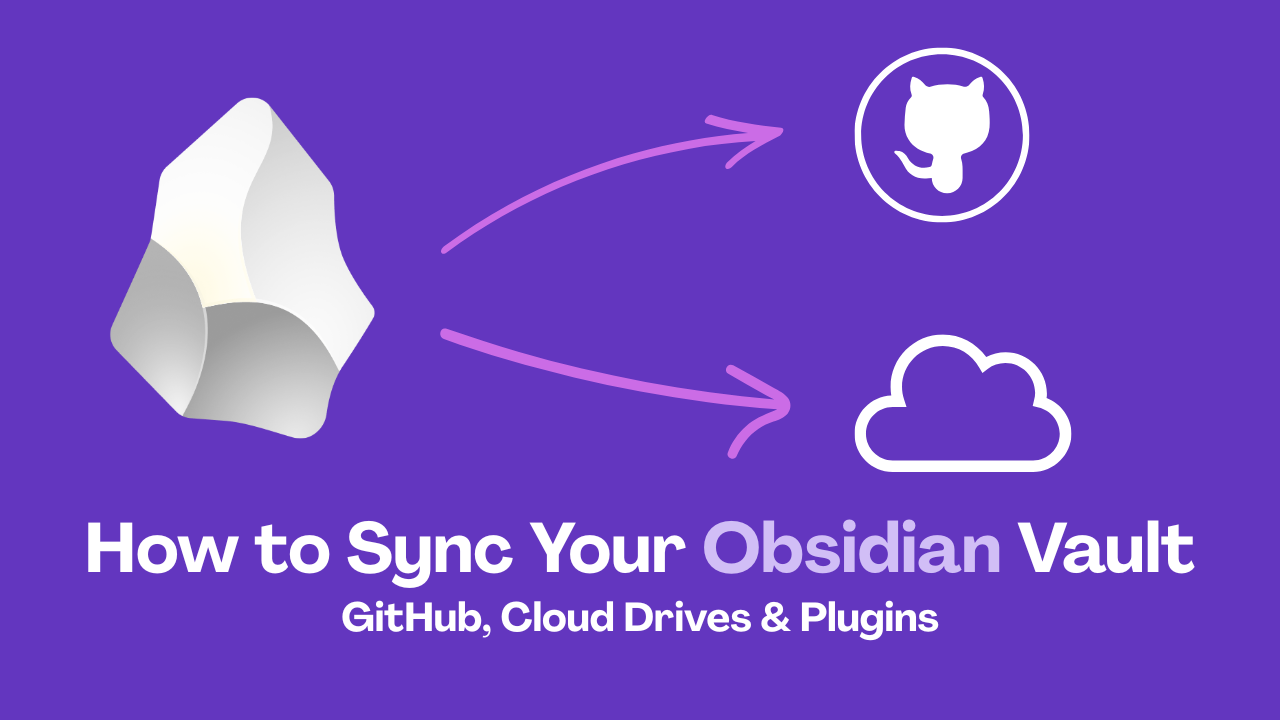
Obsidian stores a vault as local files, so syncing is a workflow decision rather than a single setting. The right method depends on your devices, whether you need version history, how often you edit on multiple devices, and how much operational work you are willing to maintain.
The safest rule is simple: use one synchronization system for one vault. Do not run Obsidian Sync, a cloud-drive folder, Git, and a community sync plugin against the same files at the same time. Overlapping systems can create duplicate files, stale copies, or hard-to-interpret conflicts.
Quick Decision Framework
This table is a starting point, not a universal ranking. Test the method with a copy of your vault before moving irreplaceable notes.
Before You Sync Anything
Create a recovery point first. Copy the vault to a separate location, confirm that several Markdown notes open outside Obsidian, and record the current size of the vault. Include attachments and the hidden .obsidian folder in the backup only when you understand why you need each configuration file.
Write down the devices that need access, whether you edit on two devices at once, whether the vault contains private or regulated information, whether you need historical versions, and which folders contain large media or generated files. This prevents choosing a method for a hypothetical workflow instead of the one you actually have.
Option 1: Obsidian Sync
Obsidian Sync is the most direct starting point when you want supported cross-device synchronization with minimal assembly. Use the official Obsidian Sync documentation for current plan, device, and encryption details.
Choose it when you use desktop and mobile devices together, want synchronization integrated into Obsidian, or prefer a managed service over maintaining Git or a storage plugin. Test how attachments, plugins, themes, and workspace configuration behave across your devices. Read the current Sync security and privacy documentation instead of assuming every file has the same protection.
Option 2: Git and a Private Repository
Git is useful when the vault is primarily a personal or technical archive and you value diffs, commits, and rollback. A private GitHub repository can store Markdown and configuration history, but it does not remove account, token, large-binary, or merge-conflict risks.
Git Vault Sync
✓ CommunityOne-click Git sync for Obsidian on desktop and mobile: no system Git required.
- ✓One-click sync: stage, commit, fetch, merge, and push in one action
- ✓Works on iOS and Android: no system Git binary needed
- ✓Dual sync engines: isomorphic-git (desktop) and GitHub API (mobile)
A conservative workflow is: pull before editing on another computer, review changed files, commit a focused change, push only after excluding secrets and private exports, and keep a second backup outside the repository. Never commit API keys, tokens, client material, or unreviewed exports to a public repository.
Option 3: Cloud Folders and Sync Plugins
A cloud-drive folder can be simple for desktop-to-desktop use, but mobile behavior varies because iOS and Android do not expose every provider as a normal local folder. Confirm the exact behavior on your devices before moving your main vault.
For provider-based workflows, compare current documentation and source before installing a plugin:
Remotely Save
✓ CommunitySync your vault across devices for free using S3, Dropbox, OneDrive, Backblaze B2, or WebDAV. The #1 alternative to Obsidian's paid Sync.
Sync Vault CE
✓ CommunityProfessional cloud sync with zero-space VFS, 4K streaming, encryption, and a built-in media player.
- ✓Zero-space VFS: access cloud files without local storage
- ✓AES-GCM encryption for secure file transfers
- ✓Built-in media player with 4K streaming, speed control, and subtitles
Provider support, encryption options, storage layouts, and conflict strategies can change with releases. Check the repository, release notes, permissions, and last update before using a plugin with sensitive notes.
Conflict Recovery
When two devices show different content, stop editing the affected note and pause automatic sync if possible. Make a full copy of the current vault. Identify the newest known-good version using Git history, provider version history, or file comparison. Merge unique paragraphs, frontmatter, links, and attachments into a temporary file, open it in Obsidian to verify rendering, and replace the original only after checking links and properties.
Do not delete conflict copies until the merged note has been backed up. If many files conflict, restore the last known-good vault instead of resolving files under pressure.
Security and Privacy Checklist
Before choosing a method, check whether the provider encrypts data in transit and at rest, whether end-to-end encryption is available, who controls recovery keys, whether plugins can read files or contact external services, whether backups are encrypted and tested, and whether the method sends attachments and hidden configuration files as well as Markdown.
Obsidian's plugin security guidance matters for sync plugins because community plugins can access files and the network. Review source, permissions, and maintenance before installing one into a sensitive vault.
What Not to Sync Blindly
Large videos, temporary exports, cache folders, downloaded datasets, and generated build files can make synchronization slow or expensive. Decide whether each belongs in the vault, a separate asset store, or a backup-only location. The .obsidian folder may contain useful configuration, but copying it between different devices can also create unwanted settings changes.
Test Plan for a New Method
Use a disposable test vault with one note, one attachment, one wikilink, one property block, and one deliberate conflicting edit. Test offline creation, simultaneous edits, note renaming, attachment changes, version restoration, and an interrupted sync. Record what happened and how recovery worked. A method is ready for real notes only when you can explain its failure mode.
Frequently Asked Questions
Can I use Obsidian Sync and Git together?
Choose one primary synchronization method for the vault. A separate, tested backup strategy is safer than two active systems editing the same files.
Is Git a backup?
Git provides history for files that were committed and pushed, but it is not complete unless attachments are included and restoration has been tested. Keep another recovery copy.
Which method is best for mobile?
Obsidian Sync is the simplest starting point for mixed desktop and mobile use. Plugin and cloud-drive support varies by provider, operating system, and release.
Should plugins and themes sync too?
Only when you want the same configuration on every device and have checked compatibility. A plugin or theme that works on desktop may behave differently on mobile.
Bottom Line
Choose Obsidian Sync for the lowest-maintenance multi-device setup, Git for reviewable history, and a cloud or self-hosted plugin when you have a specific storage requirement and are prepared to test it. The important part is documenting what synchronizes, what does not, how conflicts appear, and how you recover when the happy path fails.